How to export Xcode agent skills with xcrun
Table of Contents
Xcode 27 includes agent skills that help coding agents follow SwiftUI best practices and adopt new APIs.
You can export these skills and use them outside Xcode with a single command:
xcrun agent skills exportApple demonstrates this in What's new in SwiftUI at WWDC26. The export produces Markdown files that you can bring into your own coding workflow.
Export skills to a specific folder
To choose where the exported skills go, use the --output-dir option:
xcrun agent skills export --output-dir ~/Downloads/xcode-skillsThis writes the skill subdirectories into xcode-skills in your Downloads folder. Open that folder to inspect the exported instructions before adding them to your agent.

If you export again and want to overwrite existing skill directories, add --replace-existing:
xcrun agent skills export \
  --output-dir ~/Downloads/xcode-skills \
  --replace-existing
You can check the options available in your installed Xcode with:
xcrun agent skills export --helpYou can easily support sarunw.com by checking out this sponsor.

AI Grammar: Correct grammar, spell check, check punctuation, and parphrase.
Re-export skills from Xcode 27.1
Xcode 27.1 replaces uikit-app-modernization with a new skill, app-resizability.
If you exported skills from an earlier Xcode, export them again from Xcode 27.1 with --replace-existing:
xcrun agent skills export \
  --output-dir ~/Downloads/xcode-skills \
  --replace-existing
app-resizability covers everything uikit-app-modernization did, such as replacing UIScreen.main, interfaceOrientation, and the application lifecycle. It adds a new task for replacing userInterfaceIdiom checks that decide layout. It also activates on broader requests, like making an app resizable or supporting split-screen and Stage Manager.
The export adds app-resizability, but it doesn't remove uikit-app-modernization. Delete uikit-app-modernization yourself, both from the export folder and from wherever you copied or linked it for your agent:
rm -rf ~/Downloads/xcode-skills/uikit-app-modernizationIf you keep both, your agent sees two skills for the same job with different instructions, and which one it follows depends on which one it loads.
At the time of writing, Xcode 27.2 beta still ships uikit-app-modernization, so export from Xcode 27.1 to get the new skill.
Some skills need a connection to Xcode
Most exported skills are plain instructions, and they work in any agent. But some skills expect your agent to use tools that only Xcode provides.
For example, audit-xcode-security-settings tells the agent to use tools like XcodeRead, XcodeListTargets, and AddEntitlement to read your project and change its build settings and entitlements. Outside Xcode, your agent doesn't have these tools unless you connect it to Xcode.
Xcode shares these tools through an MCP (Model Context Protocol) server. Here is how to give an external agent access to Xcode.
1. Allow external agents in Xcode
- Open Xcode > Settings and select Intelligence in the sidebar.
- Under Model Context Protocol, turn on Allow External Agents to Use Xcode Tools.
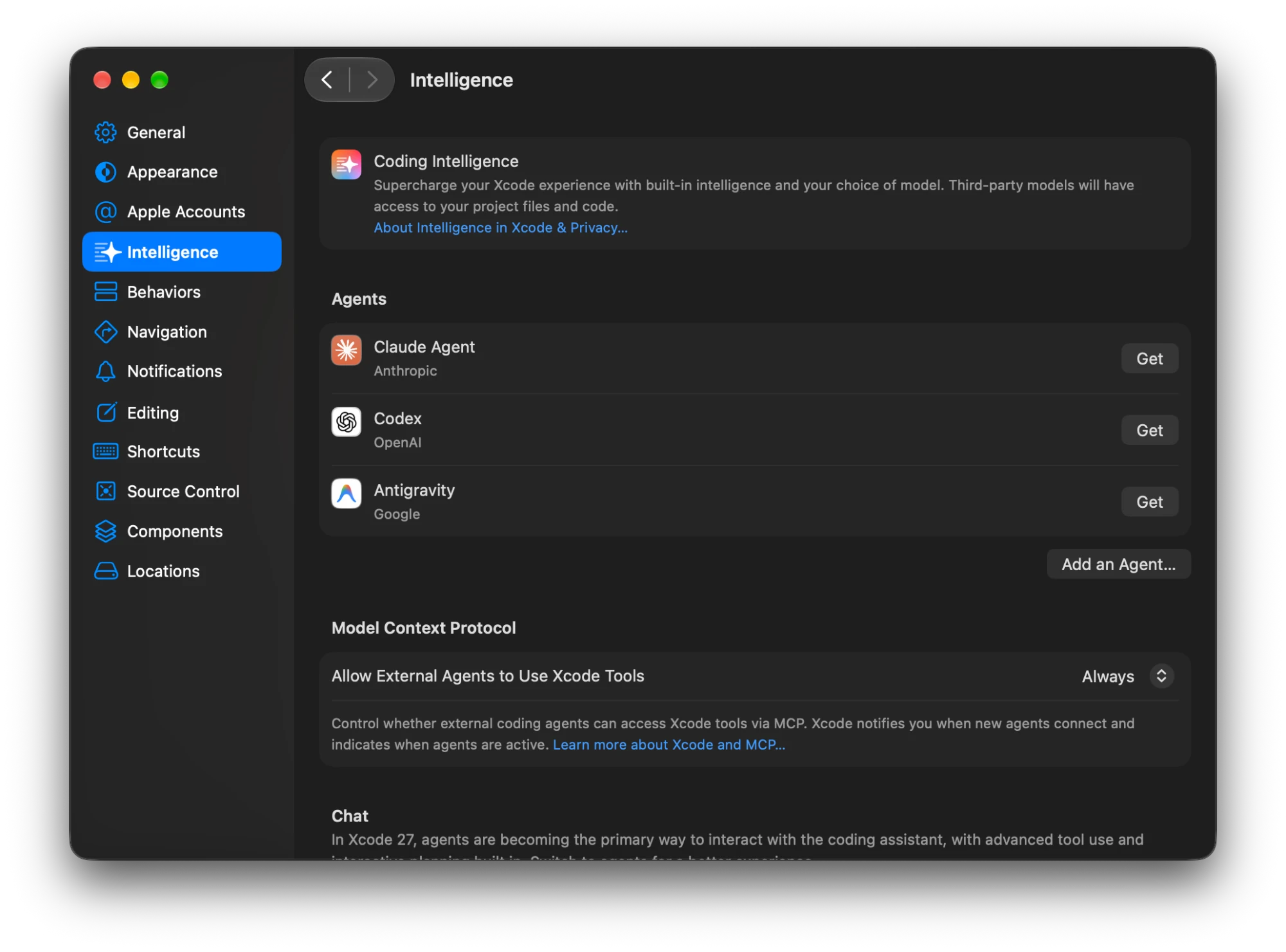
Xcode lets you know when an external agent connects and when it's active.
2. Add Xcode's MCP server to your agent
Xcode provides the xcrun mcpbridge command, which connects your agent to the Xcode that is running.
For Claude Code, run:
claude mcp add --transport stdio xcode -- xcrun mcpbridgeFor Codex, run:
codex mcp add xcode -- xcrun mcpbridgeTo check that it worked, run claude mcp list or codex mcp list. You should see xcode in the list.
3. Open your project in Xcode
The agent works on the project that is open in Xcode, so open your project in Xcode before you start prompting. Then ask your agent to use the skill as usual.
You can easily support sarunw.com by checking out this sponsor.
AI Grammar: Correct grammar, spell check, check punctuation, and parphrase.
If xcrun cannot find the agent command
Check which Xcode your command line tools are using:
xcode-select -pIf you have multiple versions installed, make sure the selected developer directory belongs to Xcode 27. You can change this in Xcode > Settings > Locations > Command Line Tools.
You can also choose an Xcode installation for just one command with DEVELOPER_DIR:
DEVELOPER_DIR="/Applications/Xcode-beta.app/Contents/Developer" \
  xcrun agent skills export --output-dir ~/Downloads/xcode-skills
Replace Xcode-beta.app with the name of your Xcode 27 installation.
Read more article about Xcode, SwiftUI, or see all available topic
Enjoy the read?
If you enjoy this article, you can subscribe to the weekly newsletter.
Every Friday, you'll get a quick recap of all articles and tips posted on this site. No strings attached. Unsubscribe anytime.
Feel free to follow me on Twitter and ask your questions related to this post. Thanks for reading and see you next time.
I also make short videos and visual guides on Patreon. Some things are easier to see than to read, like how an API looks and moves on a real screen. If you like to learn that way, come and watch. Sharing the article is also greatly appreciated.
Become a patron Tweet ShareAdapting your app for iPhone Duo
The essentials of adapting your app with size classes, layout margins, and safe area insets.
Adapting controls for iPhone Duo
How navigation controls, toolbars, and tab bars adapt to iPhone Duo.