Adapting controls for iPhone Duo
Table of Contents
Part 2 in the series "Adapting your app for iPhone Duo", based on Apple's Design for iPhone Duo talk.
- Adapting your app for iPhone Duo
- Adapting controls for iPhone Duo
- Adapting content for iPhone Duo
- Sheets and fold avoidance on iPhone Duo
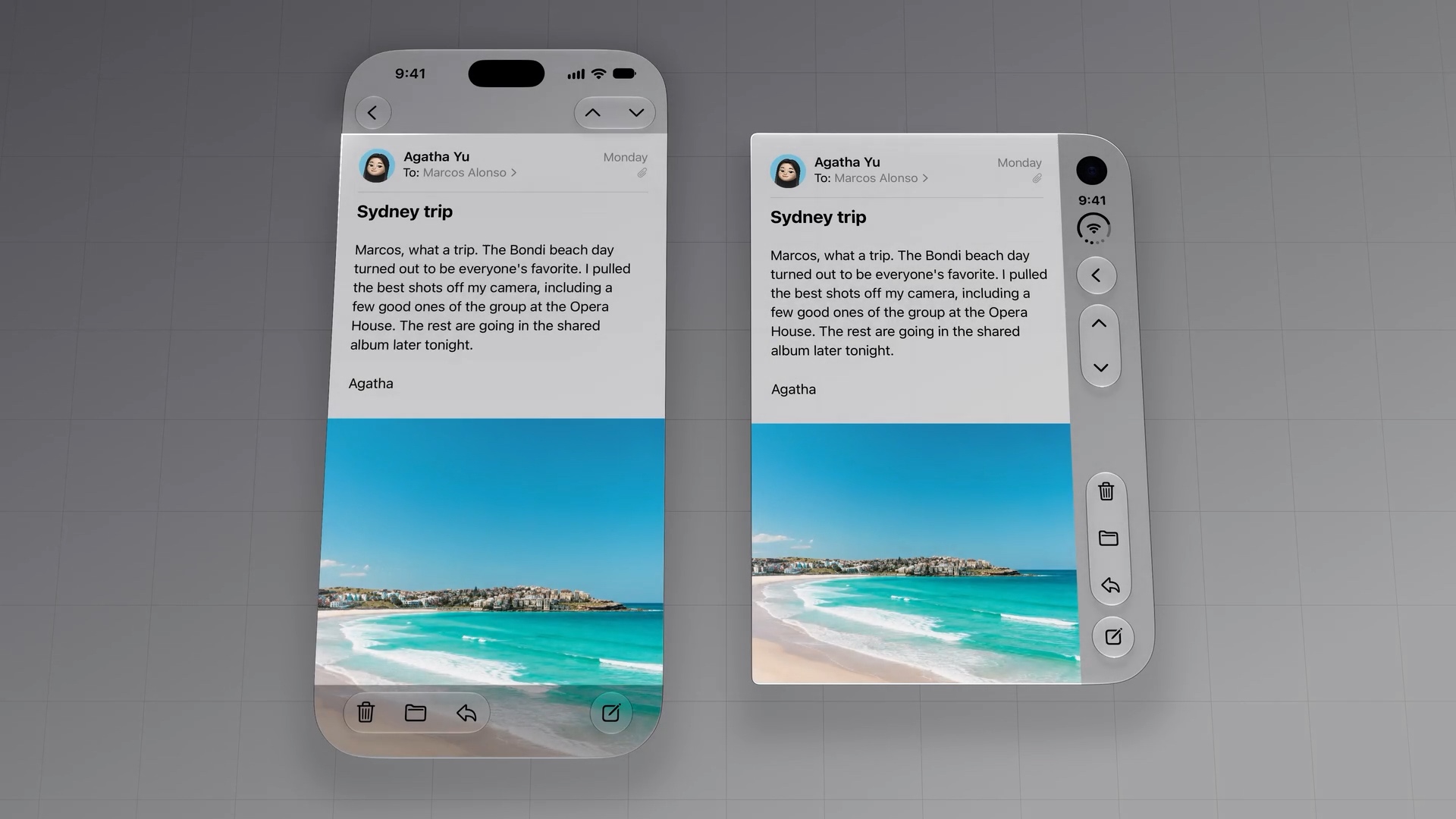
iPhone Duo gives us more horizontal room, while vertical space is more limited. That's why Apple moves navigation controls, toolbars, and tab bars from the top and bottom to the side, preserving more vertical space for content.
Here is how those controls are arranged and which items stay in place.
Horizontal bars on the inner display in portrait
The only exception is the inner display in portrait mode, both fully open and partially folded. There is enough vertical space to keep controls at the top and bottom while leaving room for content.
In the six-pose Mail example below, the two portrait layouts on the right keep navigation at the top and the toolbar at the bottom. The other four layouts use vertical controls along the side.

You can easily support sarunw.com by checking out this sponsor.

AI Grammar: Correct grammar, spell check, check punctuation, and parphrase.
What goes in the vertical bar
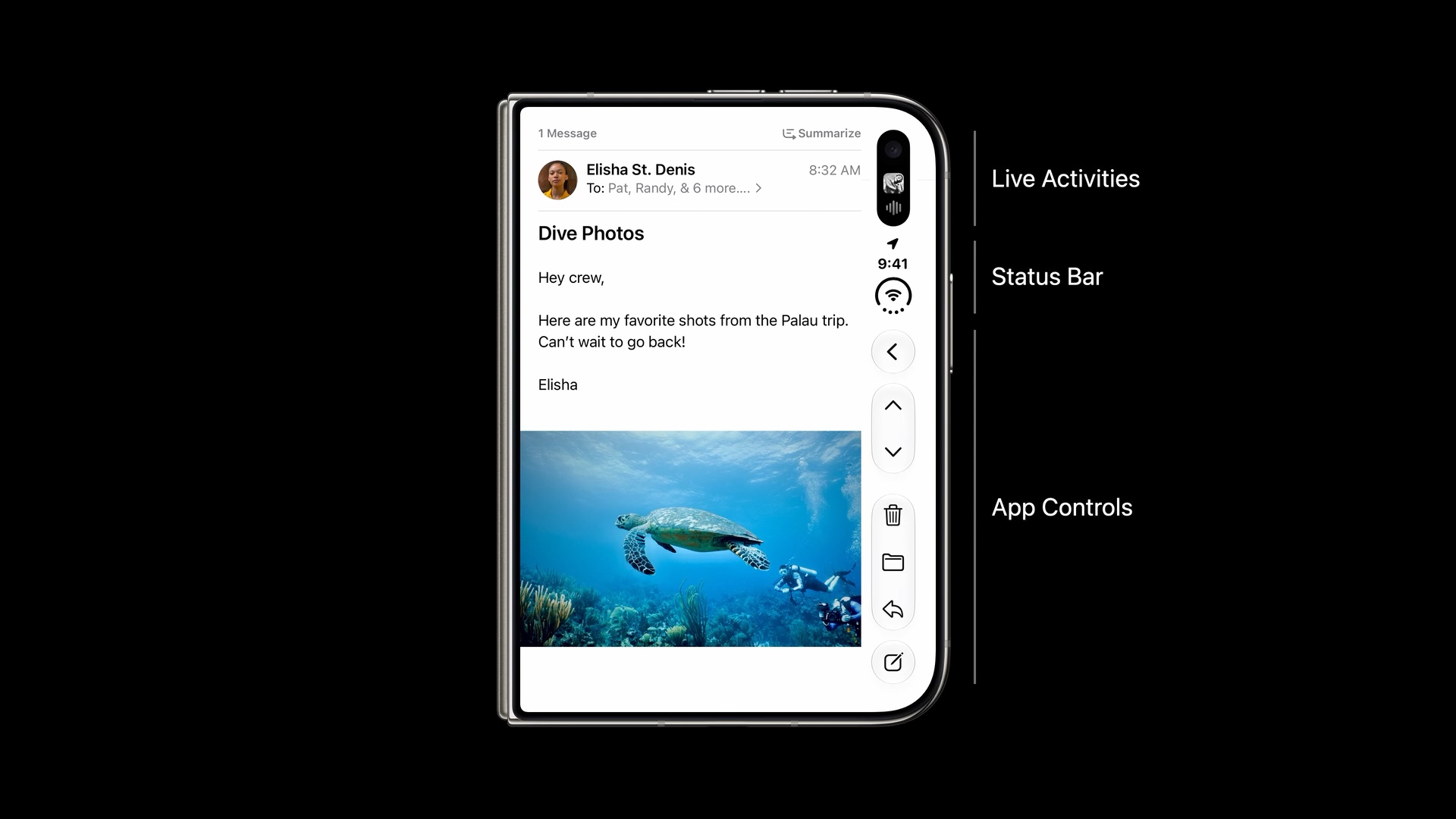
The vertical bar brings together the elements we are used to seeing at the top and bottom of the screen. They now share the space along one edge:
- Live Activities at the top.
- Status bar information below them.
- App controls, including navigation and toolbar items, in the remaining space.
In the Mail example below, the back button and message navigation sit above actions such as delete, move, reply, and compose.
Navigation controls move to the top
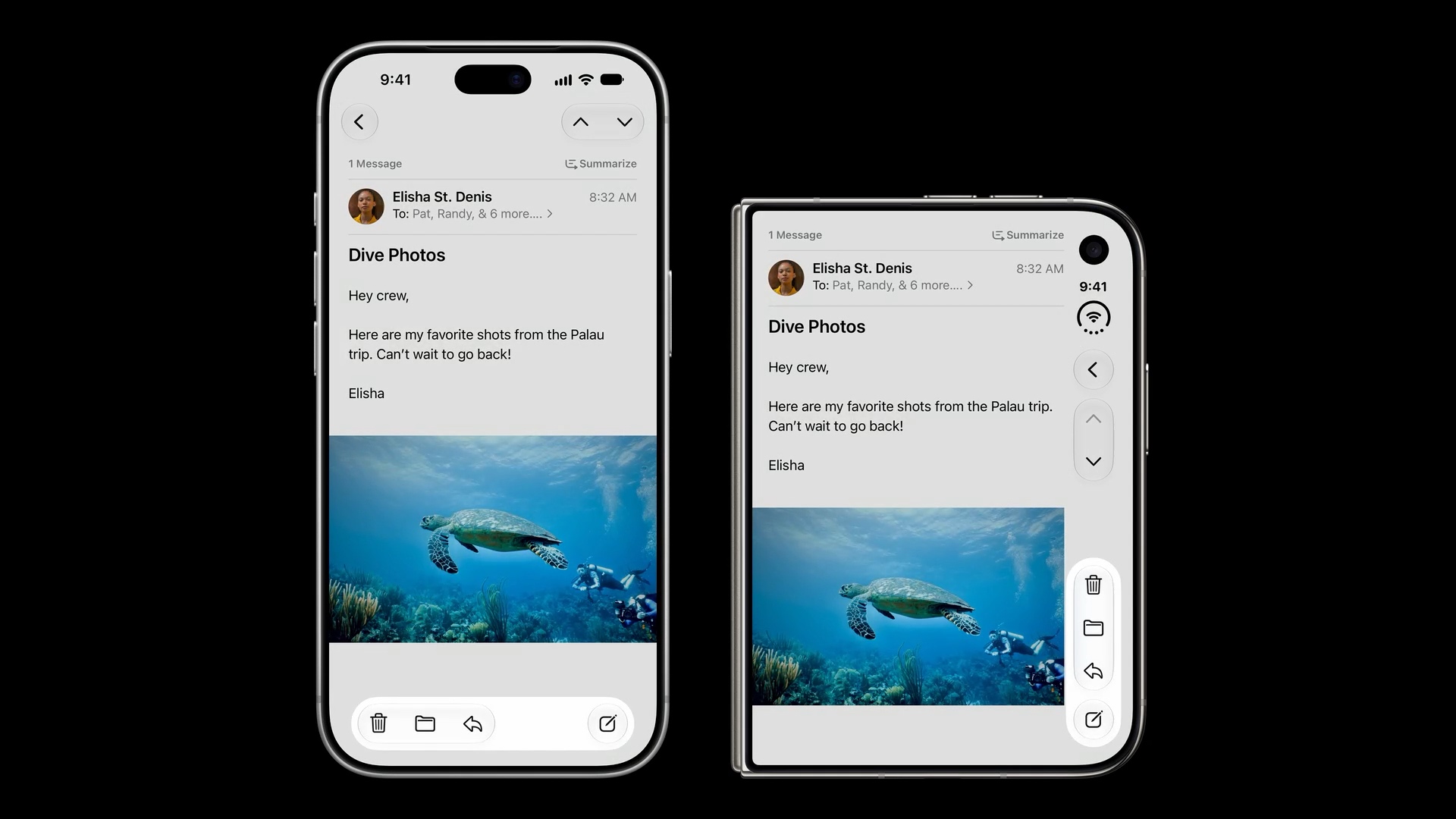
Items from the horizontal navigation bar move to the top of the app controls area in the vertical bar, below the system information.
In Mail, the back button and the previous and next message buttons move from across the top of the screen to a vertical arrangement along the side.

Toolbar items move to the bottom
Items from the bottom toolbar move to the bottom of the vertical bar.
In Mail, actions such as delete, move, reply, and compose sit below the navigation controls. The familiar top-and-bottom grouping carries over into the vertical arrangement.
Tab bars move to the bottom too
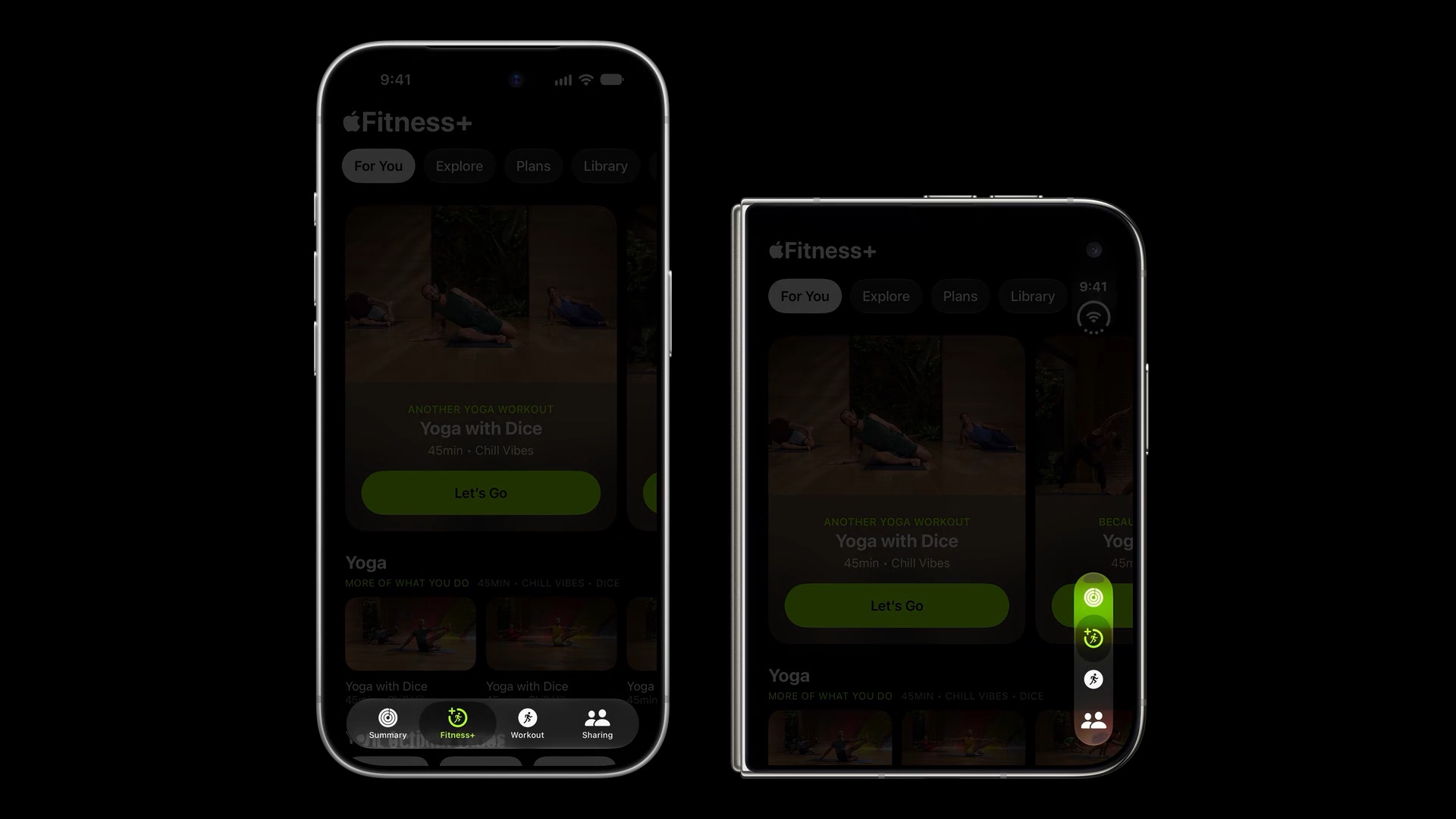
The tab bar also moves to the bottom of the vertical bar.
In the Fitness example below, the tabs change from a horizontal row along the bottom of the screen to a vertical stack near the bottom of the side bar. They still let people switch between the app's main sections.
Toolbar items and tabs share the vertical bar
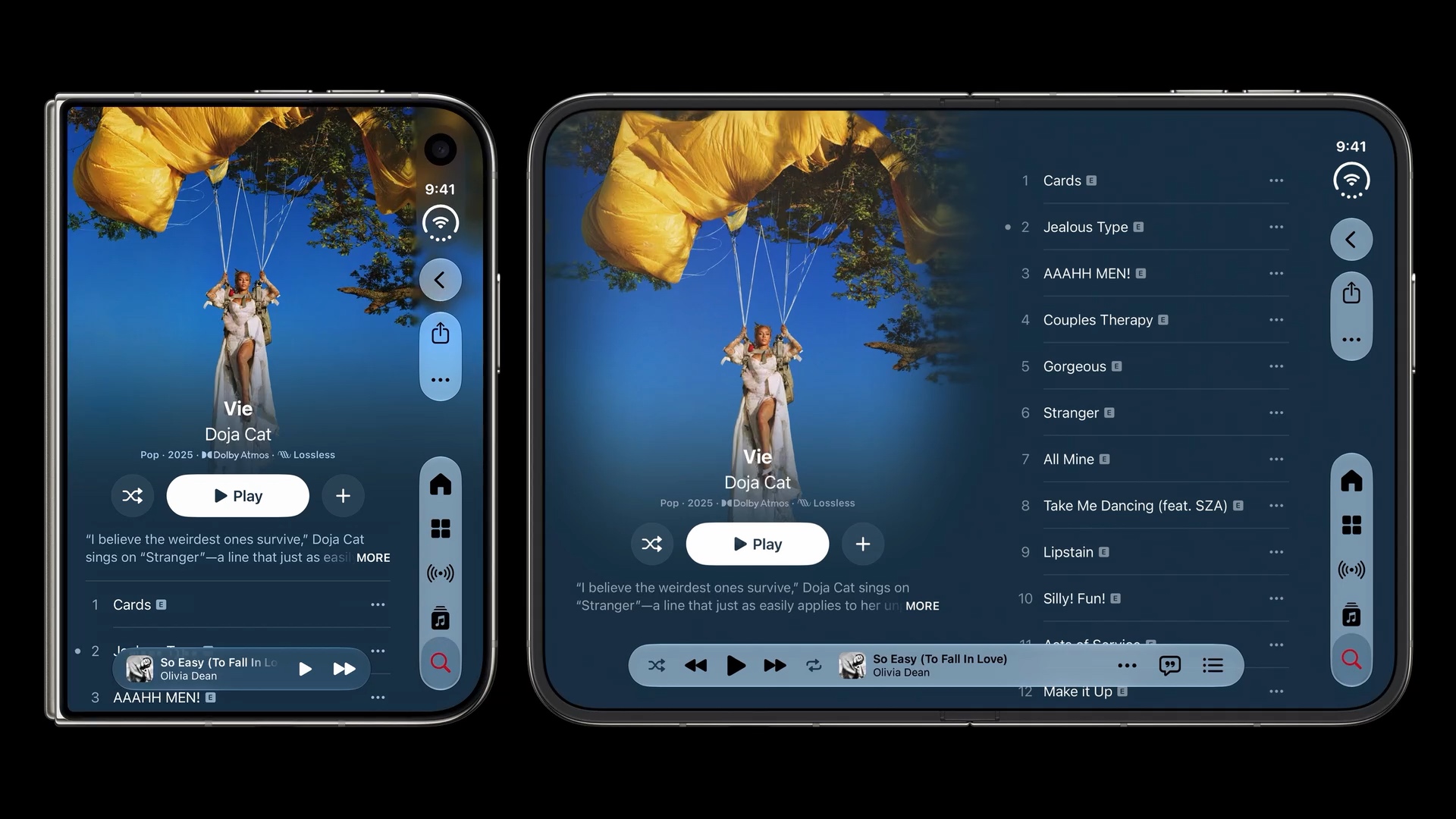
The Music example below shows toolbar items and tabs together in the same vertical bar. Back, Share, and More sit near the top, while the tabs sit below them.
If there isn't enough room, controls collapse into an overflow menu. This keeps additional actions accessible as the available space changes.
Exception: wide controls stay in place
Not every toolbar item moves to the side. Items that are too wide for the vertical bar stay in their horizontal position.
Examples include text buttons and segmented controls.
In Mail, the Select text button stays at the top of the content, while the back and more buttons move into the vertical bar.

You can easily support sarunw.com by checking out this sponsor.
AI Grammar: Correct grammar, spell check, check punctuation, and parphrase.
Summary
iPhone Duo moves controls to the side to preserve vertical space for content. Navigation controls, toolbar items, and tabs share that space, with exceptions for the inner display in portrait and controls that are too wide to fit.
In the next article, we will look at how to adapt the content around those controls: handling asymmetrical layouts, making use of the wider inner display, and arranging media around the fold.
Read more article about iOS, Design, or see all available topic
Enjoy the read?
If you enjoy this article, you can subscribe to the weekly newsletter.
Every Friday, you'll get a quick recap of all articles and tips posted on this site. No strings attached. Unsubscribe anytime.
Feel free to follow me on Twitter and ask your questions related to this post. Thanks for reading and see you next time.
I also make short videos and visual guides on Patreon. Some things are easier to see than to read, like how an API looks and moves on a real screen. If you like to learn that way, come and watch. Sharing the article is also greatly appreciated.
Become a patron Tweet ShareHow to export Xcode agent skills with xcrun
Export Apple's built-in agent skills from Xcode 27 and use them with your preferred coding agent.
Adapting content for iPhone Duo
How to arrange content across the outer and inner displays of iPhone Duo.