A guide to Apple's iPhone Duo Tech Talks
Table of Contents
Apple has released six Tech Talks about iPhone Duo. They cover design, adapting an existing app, and new features that use the folding display.
If you aren't sure which video to start with, this article gives you a brief summary of what each talk covers and when it is useful.
TL;DR: For most apps, I would watch the videos in this order:
- Design for iPhone Duo — Understand the design changes.
- Prepare your app for iPhone Duo — Find out what to update in your existing app.
- Raise the bar with iPhone Duo — Adapt navigation and toolbars to a vertical layout.
- Strike a pose with adaptive layouts on iPhone Duo — Keep content visible and reachable around the fold.
- Leverage multiple displays and scenes on iPhone Duo — Explore multitasking, hinge interactions, and using both displays.
- Build a great camera experience for iPhone Duo — Handle camera switching and previews if your app uses the camera.
Design for iPhone Duo
Watch Design for iPhone Duo · 10 minutes 45 seconds
This is a good place to start if you want to understand how an app should look and behave on iPhone Duo.
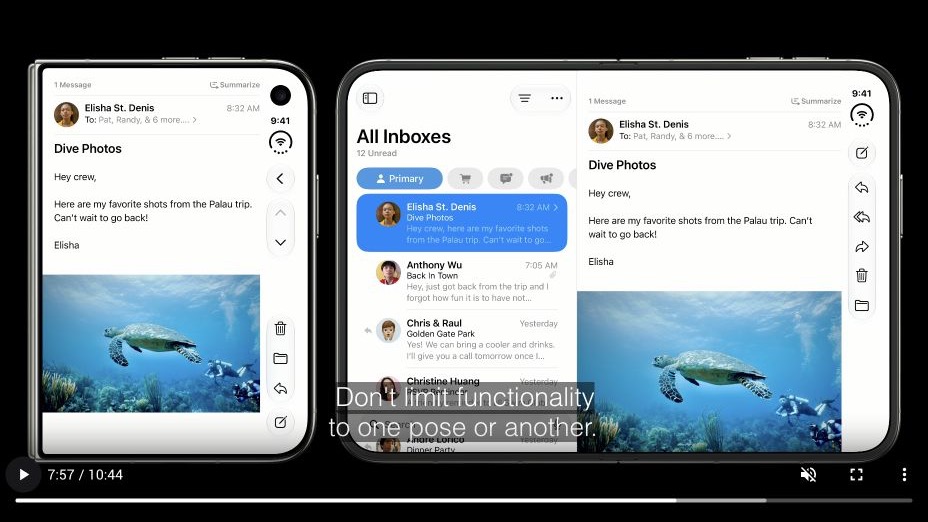
The talk explains how controls, layouts, and sheets adapt to the inner and outer displays. It also covers why controls move to the side and how content moves away from the fold.
One point to keep in mind is that your app should feel like the same app across different positions. You can show more content on the larger display while keeping the functionality familiar.
You can easily support sarunw.com by checking out this sponsor.

AI Paraphrase:Are you tired of staring at your screen, struggling to rephrase sentences, or trying to find the perfect words for your text?
Prepare your app for iPhone Duo
Watch Prepare your app for iPhone Duo · 10 minutes 10 seconds
This is the starting point for updating an existing app.
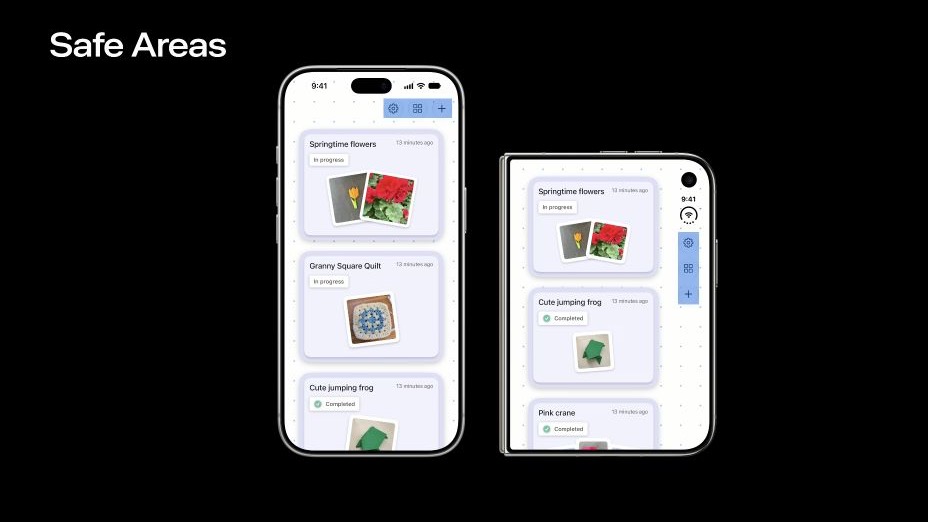
It covers building with the latest SDK, using flexible layouts, and testing different device positions in Xcode. You will also learn why you should use size classes instead of relying on interface orientation, and why safe area insets might be different on each side.
Watch this to find assumptions about screen size, orientation, and navigation that you need to revisit in your app.
Raise the bar with iPhone Duo
Watch Raise the bar with iPhone Duo · 15 minutes 43 seconds
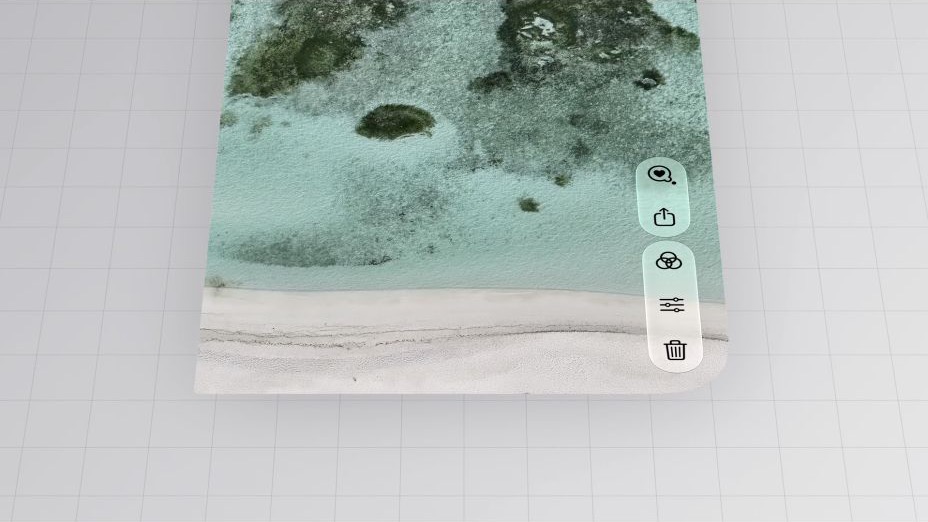
On iPhone Duo, navigation and toolbar controls can move from the top and bottom of the screen to the side.
This talk explains how to prepare your bars for a vertical layout. It covers the order of toolbar items, adapting custom controls, and choosing which actions stay visible when space is limited. The remaining actions can move into an overflow menu.
If your app has many toolbar actions or custom toolbar views, this is the talk to watch next.
Strike a pose with adaptive layouts on iPhone Duo
Watch Strike a pose with adaptive layouts on iPhone Duo · 18 minutes 1 second
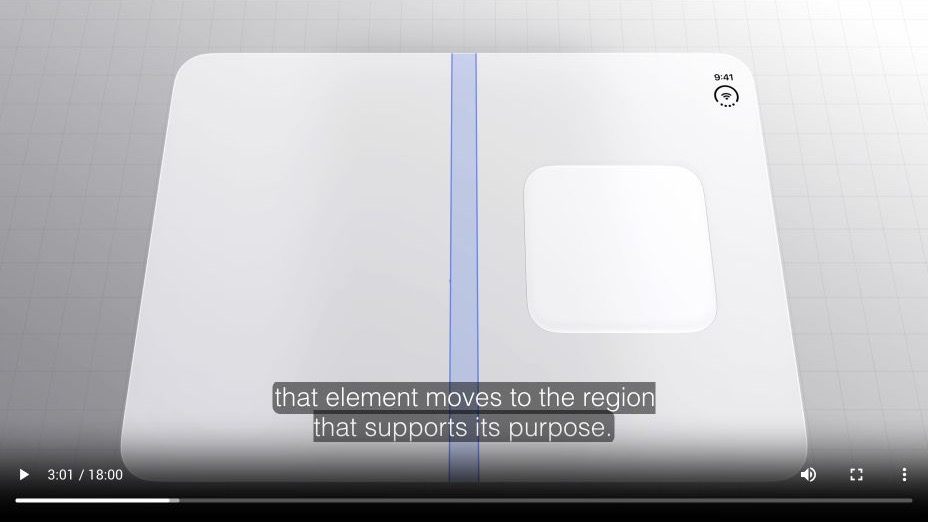
When someone partially folds the device, content near the hinge can become harder to see or reach.
This talk shows how to move and resize content around the fold and cameras. It introduces reserved regions and arrangement views in SwiftUI and UIKit, including split and overlay layouts.
Watch this when you need to decide where your content should move as the device folds, and how it should adapt to the available space.
Leverage multiple displays and scenes on iPhone Duo
Watch Leverage multiple displays and scenes on iPhone Duo · 7 minutes 17 seconds
This talk covers multitasking, multiple app windows, and using both displays at the same time.
It also shows how to use the hinge angle for interactions. One example uses folding to change the pitch of a virtual guitar. Another adds a teleprompter on the outer display while a camera app records.
Watch this if you want to explore features that take advantage of the hardware. For moving content around the fold, start with the adaptive layouts talk above.
Build a great camera experience for iPhone Duo
Watch Build a great camera experience for iPhone Duo · 9 minutes 27 seconds
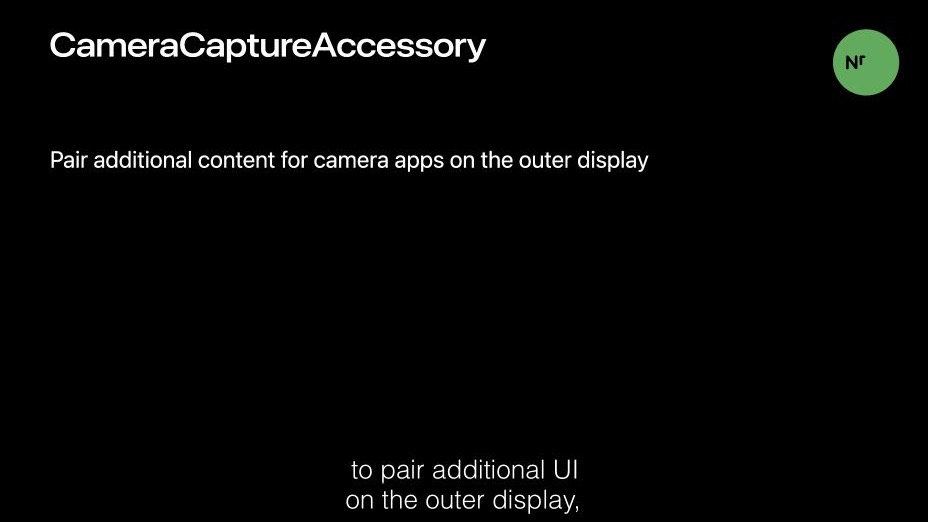
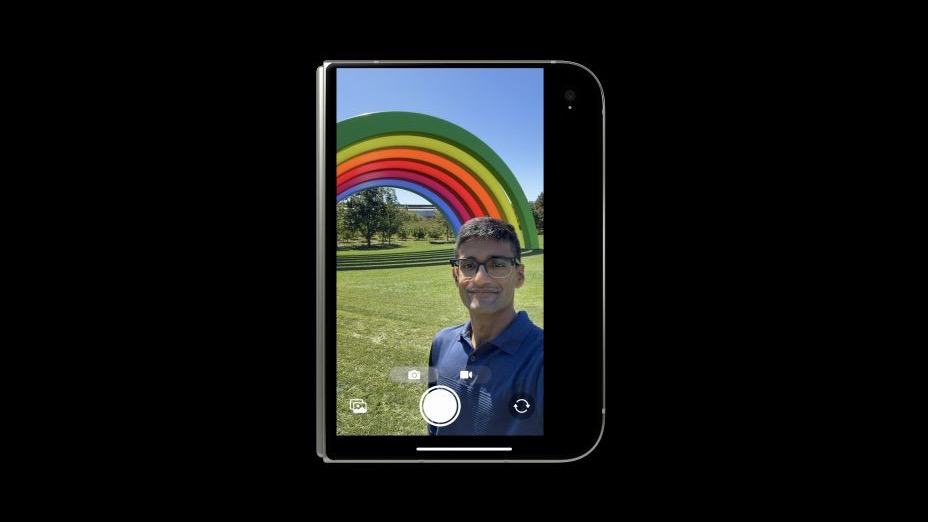
If your app takes photos, records video, or supports video calls, this talk explains how to handle the cameras as the device opens and closes.
The virtual front camera can switch between the inner and outer cameras automatically. If you need more control, the talk explains how to use a direction coordinator to choose the appropriate camera.
It also covers preview sizing, mirroring, and rotation so the camera preview looks right as the user changes displays.
You can easily support sarunw.com by checking out this sponsor.
AI Paraphrase:Are you tired of staring at your screen, struggling to rephrase sentences, or trying to find the perfect words for your text?
Which videos should you watch first?
For most apps, I would start with Design for iPhone Duo and Prepare your app for iPhone Duo. Together, they explain the design changes and what to check in your existing app.
Then move on to the toolbar and adaptive layout talks for more detail. The multiple-display and camera talks are useful when your app needs those features.
Read more article about iOS, SwiftUI, UIKit, or see all available topic
Enjoy the read?
If you enjoy this article, you can subscribe to the weekly newsletter.
Every Friday, you'll get a quick recap of all articles and tips posted on this site. No strings attached. Unsubscribe anytime.
Feel free to follow me on Twitter and ask your questions related to this post. Thanks for reading and see you next time.
I also make short videos and visual guides on Patreon. Some things are easier to see than to read, like how an API looks and moves on a real screen. If you like to learn that way, come and watch. Sharing the article is also greatly appreciated.
Become a patron Tweet ShareExistential any in Swift, and when it becomes required
The any keyword makes the cost of an existential type visible. Here is what a bare protocol name was hiding, where the migration actually stands today, and how to turn the warnings on early.
Backward compatibility on iPhone Duo
See how existing apps look on iPhone Duo when built before iOS 27, with the iOS 27 SDK, and with the iOS 27.1 SDK.