Get concentric corner radii from GeometryReader in iOS 27
Table of Contents
ConcentricRectangle draws a shape whose corners match its container. But sometimes you need the numbers, not the shape, for example to build your own shape or to pass radii somewhere else.
In iOS 27, GeometryProxy gives you those numbers with a new property, concentricCornerRadii.
How to use it
Read it inside a GeometryReader. It returns an optional RectangleCornerRadii, which you can pass straight to UnevenRoundedRectangle:
GeometryReader { proxy in
    let radii = proxy.concentricCornerRadii ?? RectangleCornerRadii()

    UnevenRoundedRectangle(cornerRadii: radii)
        .fill(.pink)
}
.frame(width: 220, height: 160)
Here is a card built this way, dragged around an iPhone 18 Pro screen. The numbers are the four radii it gets back.
You can easily support sarunw.com by checking out this sponsor.

AI Paraphrase:Are you tired of staring at your screen, struggling to rephrase sentences, or trying to find the perfect words for your text?
How the radii are calculated
The card's corner curves around the same center as the screen's corner. On iPhone 18 Pro, the screen corner has a radius of about 62 points.
So the card's radius is the screen's radius minus the gap between them. A card 16 points from the corner gets 62 − 16 = 46.
There is one limit. A corner can't be rounder than half the card's shorter side. A card 100 points tall can't have a radius above 50, so a card 8 points from the corner gets 50 instead of 62 − 8 = 54.
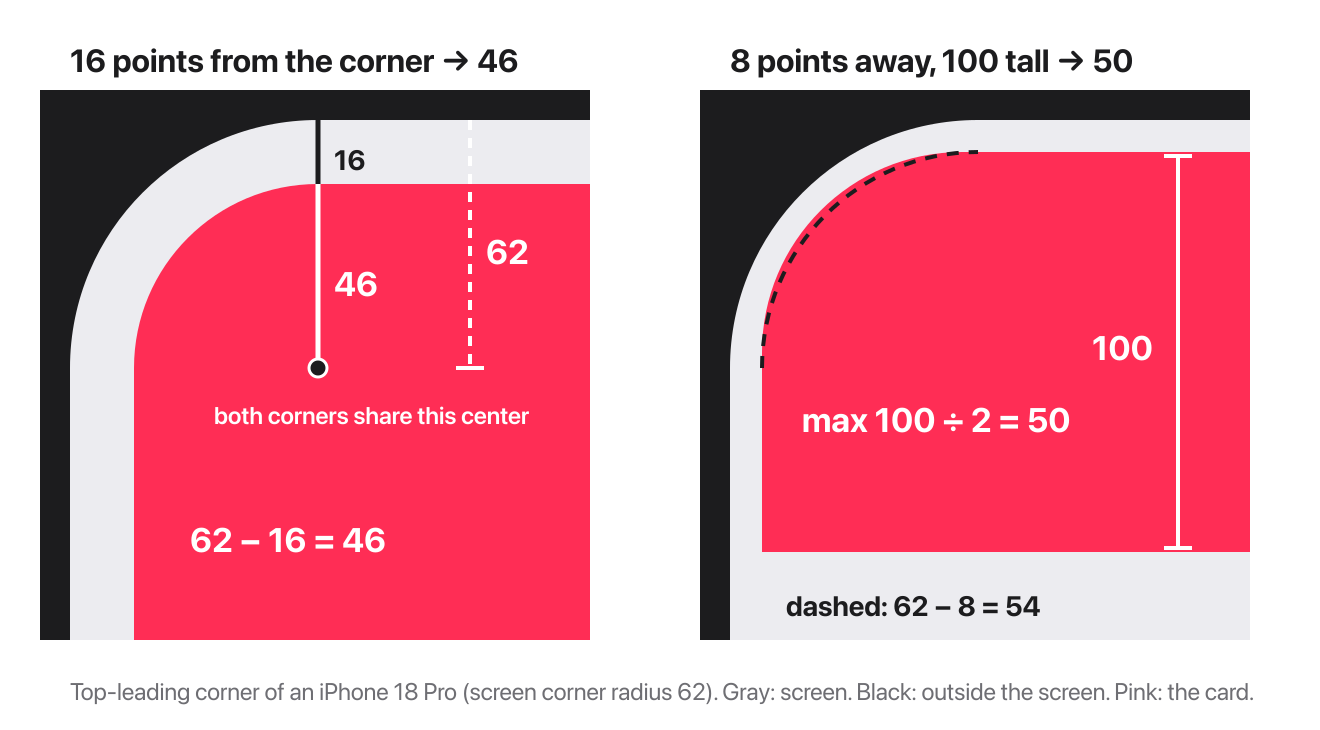
Corners that aren't near a screen corner get 0, which is why a card in the middle of the screen has four square corners.
The limit can push a corner off the screen
When the limit applies, the card's corner is tighter than the screen's curve, so it doesn't follow the screen anymore. Close to the corner, its tip can end up outside the screen.
Here is a card 62 points tall at three gaps. It gets 31, half its height, at all three gaps, because 31 is smaller than 62 minus the gap each time. What changes is whether that 31-point corner fits inside the screen:
- Touching the corner: the tip of the corner is about 13 points past the screen's curve, so the display cuts it off.
- 8 points away: still about 1.5 points past the curve. Barely, but it's cut off.
- 16 points away: the corner fits inside the screen.
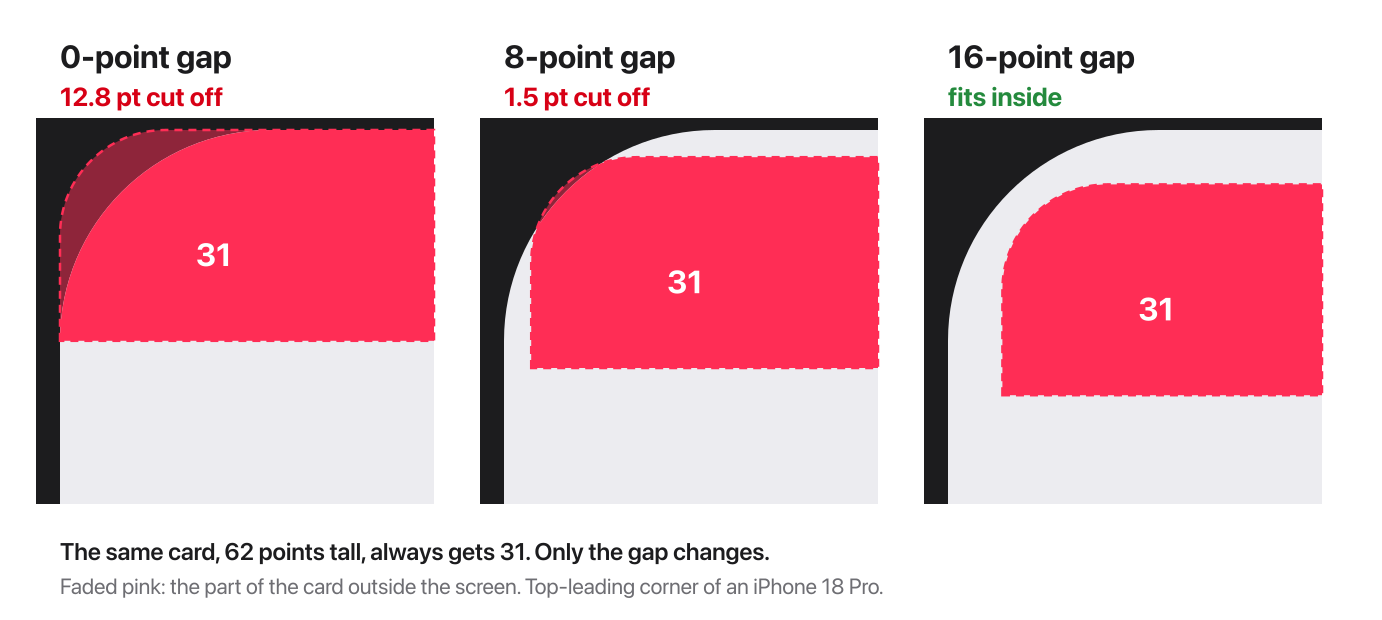
So if your view is short and sits close to a screen corner, check that its corner isn't cut off.
Follow your own container
By default, the radii follow the corners of the screen. To follow a shape of your own, declare it with containerShape(_:), the same way you would for ConcentricRectangle:
VStack {
    // views that read concentricCornerRadii
}
.background(
    RoundedRectangle(cornerRadius: 40)
        .fill(.gray.opacity(0.1))
)
.containerShape(RoundedRectangle(cornerRadius: 40))
With a 40-point container, a card touching the container's corner gets 40, and a card 10 points away gets 30.
Get radii for any rectangle
concentricCornerRadii gives you the radii for the view the GeometryReader wraps. If you want the radii for another rectangle, pass its frame to concentricCornerRadii(in:).
The frame is in the proxy's own coordinates, and the same rules apply. This lets one GeometryReader work out the corners for several shapes, without wrapping each one in its own GeometryReader:
GeometryReader { proxy in
    let frame = CGRect(x: 16, y: 16, width: 140, height: 100)
    let radii = proxy.concentricCornerRadii(in: frame) ?? RectangleCornerRadii()

    UnevenRoundedRectangle(cornerRadii: radii)
        .fill(.pink)
        .frame(width: frame.width, height: frame.height)
        .position(x: frame.midX, y: frame.midY)
}
.ignoresSafeArea()
With the GeometryReader filling the screen, this rectangle is 16 points from the top-leading corner, so its top-leading radius is 46, the same as a card placed there.
You can easily support sarunw.com by checking out this sponsor.
AI Paraphrase:Are you tired of staring at your screen, struggling to rephrase sentences, or trying to find the perfect words for your text?
Things to know
concentricCornerRadiiis optional. Fall back to zero radii, as in the example above, so your shape stays square if it returnsnil.- It's iOS 27 only. On iOS 26, use
ConcentricRectangleinstead.
Read more article about SwiftUI, iOS, or see all available topic
Enjoy the read?
If you enjoy this article, you can subscribe to the weekly newsletter.
Every Friday, you'll get a quick recap of all articles and tips posted on this site. No strings attached. Unsubscribe anytime.
Feel free to follow me on Twitter and ask your questions related to this post. Thanks for reading and see you next time.
I also make short videos and visual guides on Patreon. Some things are easier to see than to read, like how an API looks and moves on a real screen. If you like to learn that way, come and watch. Sharing the article is also greatly appreciated.
Become a patron Tweet ShareWhy the navigation title moves to the left in iOS 26
In iOS 26, an inline navigation title is centered only when it fits. Add a few toolbar items, and it jumps to the leading edge, or gets cut short next to a back button.
When toolbar items share a glass background in iOS 26
In iOS 26, toolbar items next to each other merge into one Liquid Glass capsule. Learn which items merge, which ones stand alone, and how to split them with ToolbarSpacer.