How to use layoutMarginsGuide in SwiftUI
Table of Contents
When you lay out content in SwiftUI, you might add some padding on the sides.
This padding keeps the text away from the screen edges, and it lines the content up with the navigation title and the toolbar buttons.
VStack(alignment: .leading) {
    Text("Lily is sleeping.")
}
.padding(.horizontal, 16)
16-point padding is just a guess
On an iPhone 17, this looks right. The text starts exactly where the large title starts.
Run the same code on an iPhone 18 Pro Max, and the text starts 4 points before the title. Here are both, zoomed in on the top-left corner. The red line marks where the title starts:
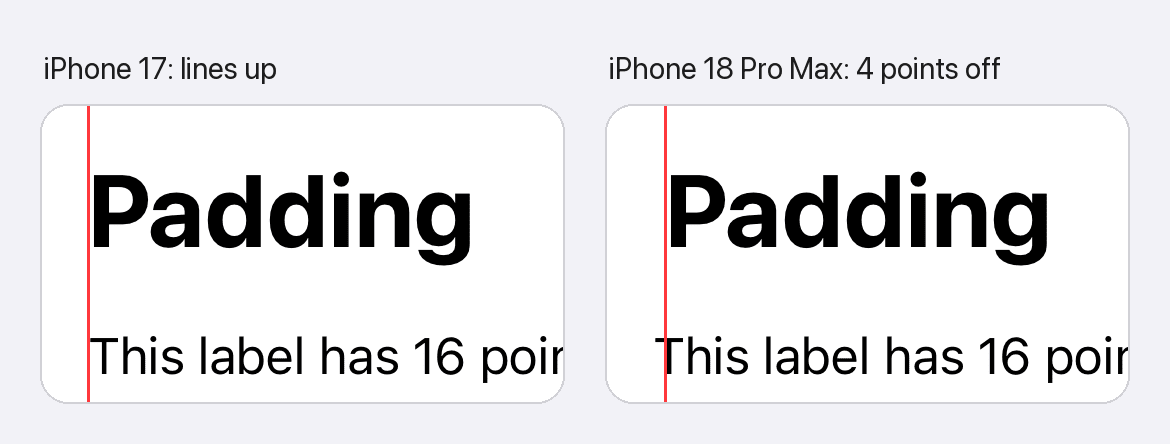
The system doesn't use the same margin on every device, and the number changes when you turn the device. A fixed 16 only matches some of them.
You can easily support sarunw.com by checking out this sponsor.

AI Grammar: Correct grammar, spell check, check punctuation, and parphrase.
iPhone Duo makes it worse
On most iPhones, the system margin is 16 or 20 points. A closed iPhone Duo is the odd one: 20 on one side and 0 on the other, next to the vertical bar.
Apple's documentation says the same thing. The system margins "range from 16 to 20 points on iPhone", and on iPhone Duo "the margin can also be asymmetric, applying different values on each side of the device when next to a vertical bar."
So .padding(.horizontal, 16) is wrong on both sides:
- On the left, the system margin is 20, but the padding adds only 16. Your content starts 4 points before the title.
- On the right, next to the bar, the system margin is 0, but the padding adds 16.
Turn the device, and the 0 moves to the other side. A fixed number can't follow that. You need something that knows where the bar is.
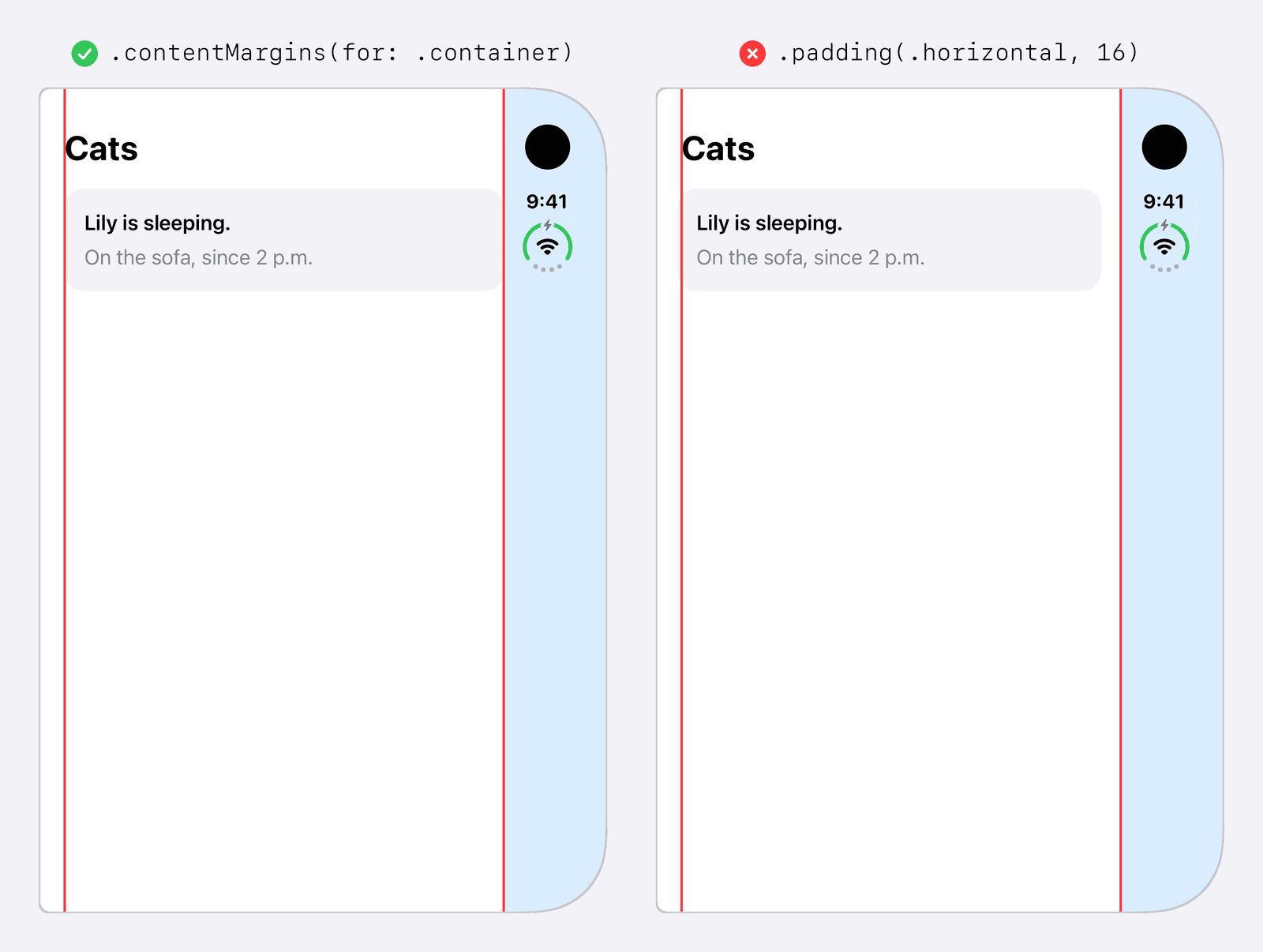
iOS 27.1 adds a way to stop guessing: contentMargins(for: .container). It lets the system pick the margins for you.
VStack(alignment: .leading) {
    Text("Lily is sleeping.")
}
.contentMargins(for: .container, edges: .horizontal)
In the rest of this article, I will show how to apply the margins, how to read them as numbers, and what to do if you still support iOS 27.0.
Apply the margins with contentMargins(for:)
The new modifier insets a view by a content margin guide. Think of the guide as a source of system spacing. You tell SwiftUI which spacing you want, and it works out the numbers for the current device.
Here is the full signature:
func contentMargins(
    for guide: ContentMarginGuide,
    edges: Edge.Set = .all,
    alignment: Alignment? = nil
) -> some View
You will mostly use the first two parameters, guide and edges.
guide
ContentMarginGuide has one value today, .container. Apple describes it as "the margins of the container the view is in." The value depends on the platform, the size of the container, and where the view sits inside it.
That last part is why iPhone Duo works. A view next to the vertical bar can get a different margin than a view on the other side.
edges
edges picks which sides get the margin. The default is .all. Edges you leave out stay untouched, even if the guide has a value for them.
For text under a navigation title, you usually want only the sides:
ScrollView {
    VStack(alignment: .leading, spacing: 12) {
        Text("Lily is sleeping on the sofa by the window. She has been there since 2 p.m., and nobody dares to move her.")
        Text("Milo is eating.")
    }
    .frame(maxWidth: .infinity, alignment: .leading)
    .contentMargins(for: .container, edges: .horizontal)
}
.navigationTitle("Cats")
Without contentMargins, the text sits right against the edge of the screen. With it, the text moves in to line up with the title:
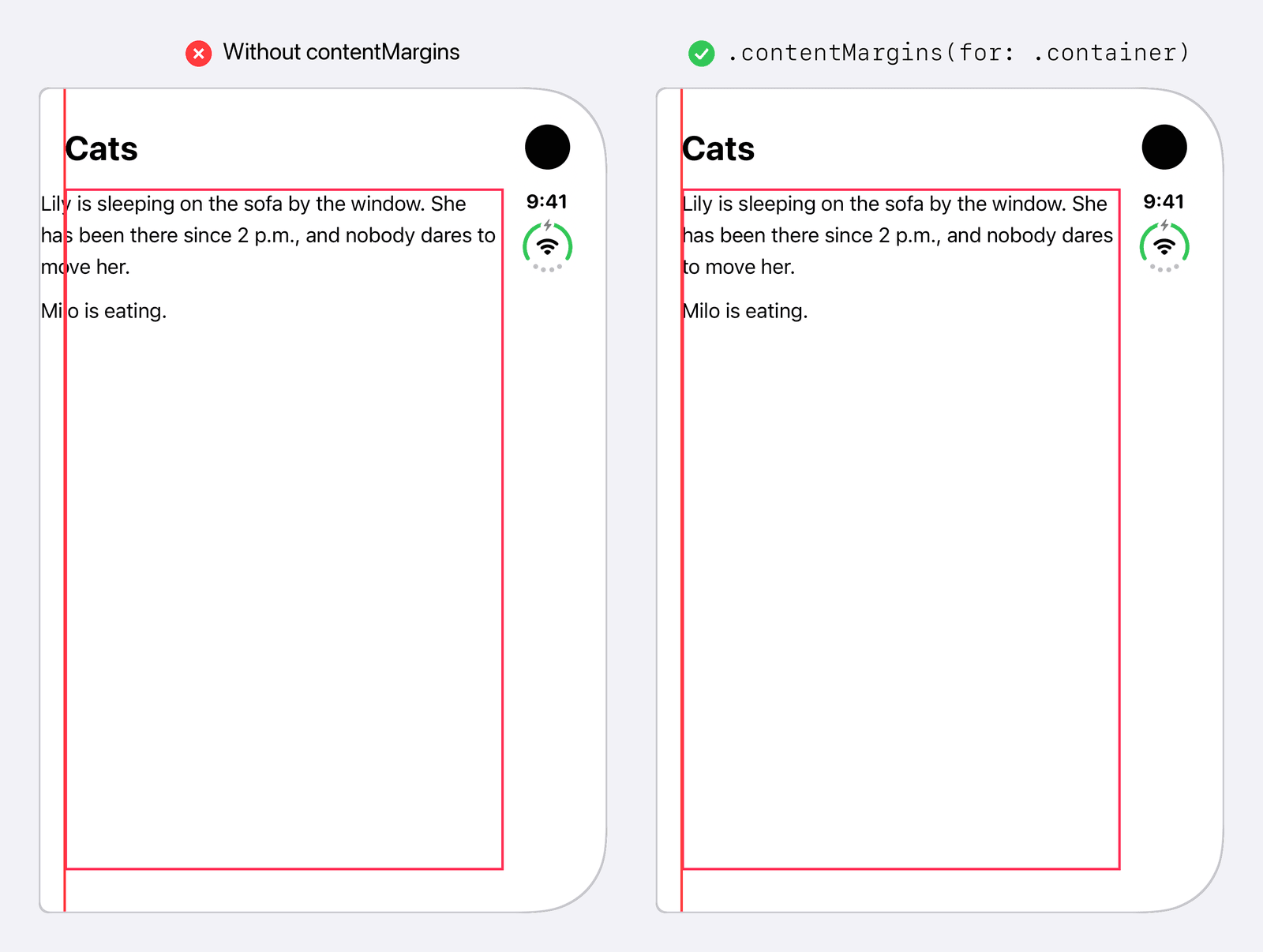
It also follows the bar when you turn the device:
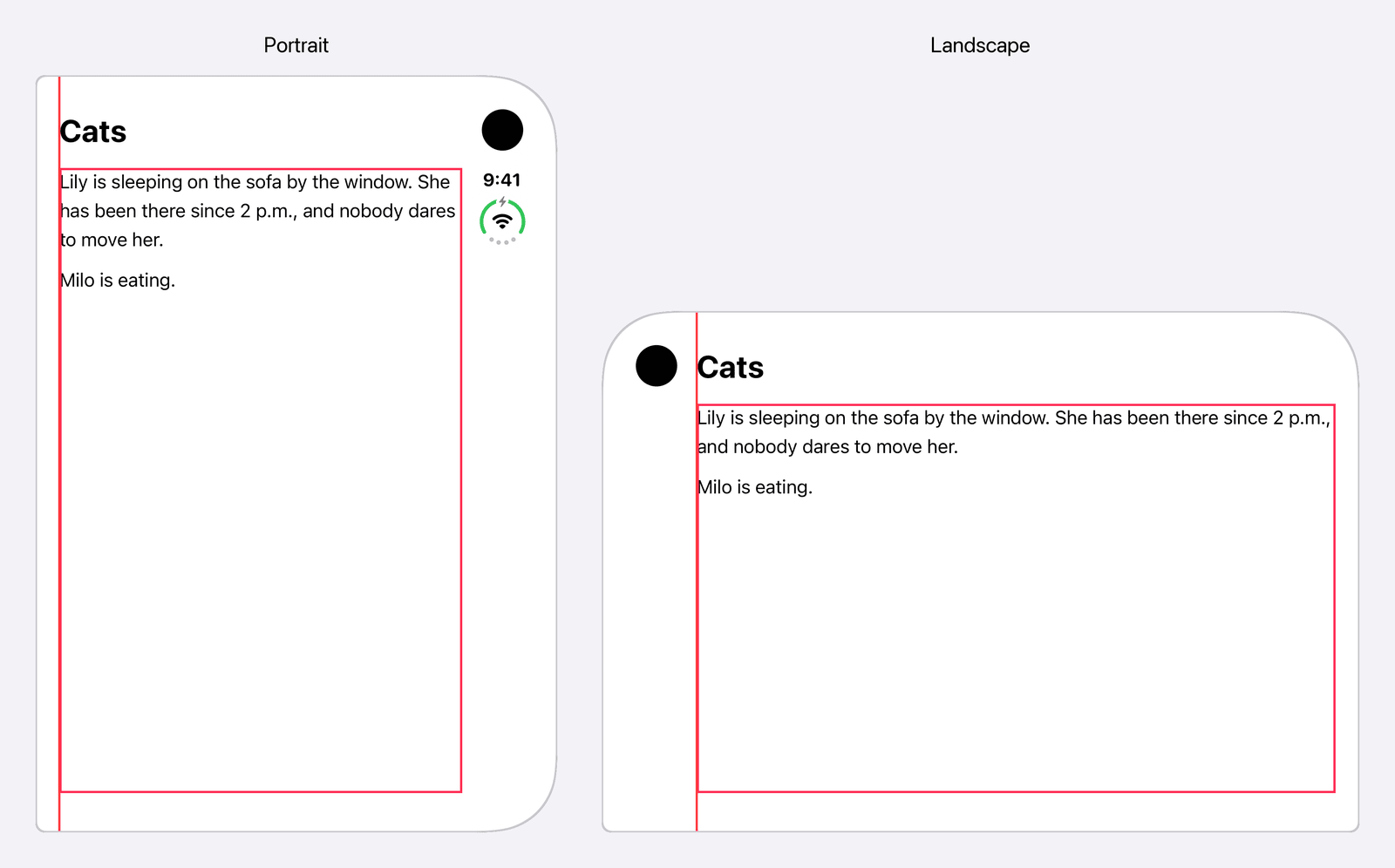
It isn't the old contentMargins
The name is easy to mix up. iOS 17 added contentMargins(_:_:for:), which takes a ContentMarginPlacement like .scrollContent or .scrollIndicators.
They do different jobs:
.contentMargins(.horizontal, 20, for: .scrollContent) // iOS 17: you pick the number
.contentMargins(for: .container, edges: .horizontal)  // iOS 27.1: the system picks it
The iOS 17 one sets margins you choose inside a scroll view. The new one applies margins the system chooses. .container belongs to ContentMarginGuide, not ContentMarginPlacement.
Read the margins from GeometryProxy
Sometimes you need the number, not the inset. GeometryProxy has a matching method in iOS 27.1:
func contentMargins(
    for guide: ContentMarginGuide,
    edges: Edge.Set = .all
) -> EdgeInsets
It returns EdgeInsets. Edges you leave out come back as zero.
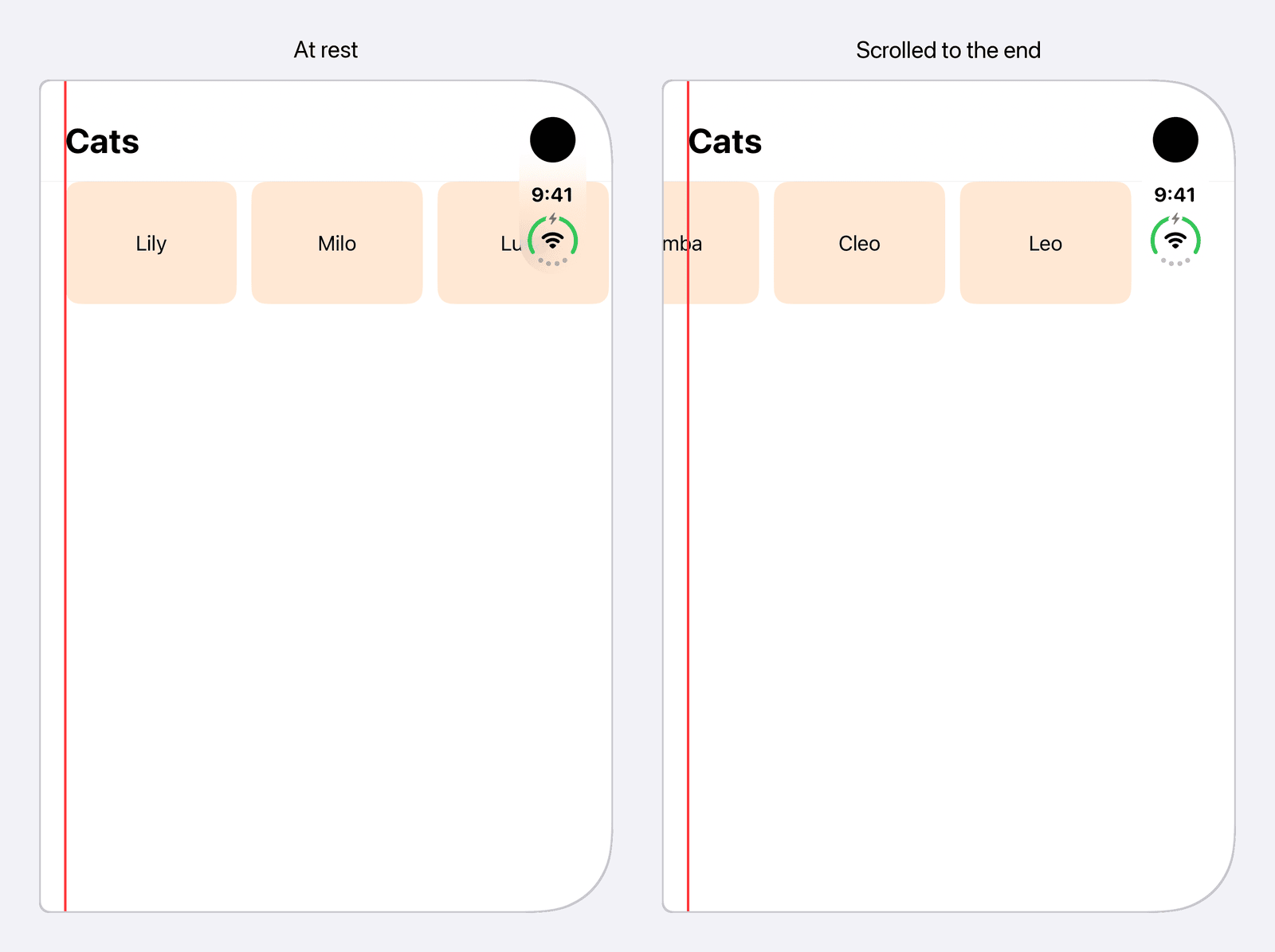
This is handy when the margins should go inside something instead of around it. A horizontal carousel is a good example. The scroll view should go edge to edge, but the first card should start at the margin.
Pass the guide's value into the iOS 17 modifier:
GeometryReader { proxy in
    ScrollView(.horizontal) {
        LazyHStack(spacing: 12) {
            ForEach(cats, id: \.self) { cat in
                Text(cat)
                    .frame(width: 140, height: 100)
                    .background(.orange.opacity(0.2), in: .rect(cornerRadius: 12))
            }
        }
    }
    .contentMargins(
        .horizontal,
        proxy.contentMargins(for: .container, edges: .horizontal),
        for: .scrollContent
    )
}
.frame(height: 100)
The cards scroll all the way to the screen edge, but they rest at the margin. At the other end, the last card stops at the bar.
Unlike UIKit, this value doesn't include the safe area. On iPhone 18 Pro Max in landscape, UIKit's layoutMargins says 78: a 62-point safe area plus a 16-point margin. proxy.contentMargins says 16. On a closed iPhone Duo, next to the bar, UIKit says 84, the width of the bar. SwiftUI says 0.
So why doesn't the last card in the carousel go under the bar? Because the scroll view already adds the safe area to its content insets. The 0 from proxy.contentMargins goes on top of that, so the last card stops right at the bar.
The value also depends on where the reader is. It tells you how much space is left between the reader and the margin. Here is what a GeometryReader reads on iPhone 18 Pro Max in portrait, where the margin is 20:
| Where the GeometryReader is | Leading value | Why |
|---|---|---|
| At the top of the screen | 20 | The full margin. |
Inside .padding(8) |
12 | 8 of the 20 points are already used, so 12 are left. |
Inside .padding(30) |
0 | 30 is more than 20, so the reader is already past the margin. |
Inside .contentMargins(for: .container) |
0 | The margin is already applied. |
So don't read the value at the top and pass it deep into your views. Read it where you use it.
Side by side with layoutMarginsGuide
If you also write UIKit, contentMargins(for: .container) is SwiftUI's version of layoutMarginsGuide. I covered that one in How to use layoutMarginsGuide in UIKit. Here is how the UIKit pieces map to SwiftUI:
| UIKit | SwiftUI (iOS 27.1) |
|---|---|
Pin to layoutMarginsGuide |
.contentMargins(for: .container) |
Read layoutMargins |
proxy.contentMargins(for: .container) |
insetsLayoutMarginsFromSafeArea |
No equivalent. The value never includes the safe area. |
preservesSuperviewLayoutMargins |
Not needed. A nested view reads what is left of the margin. |
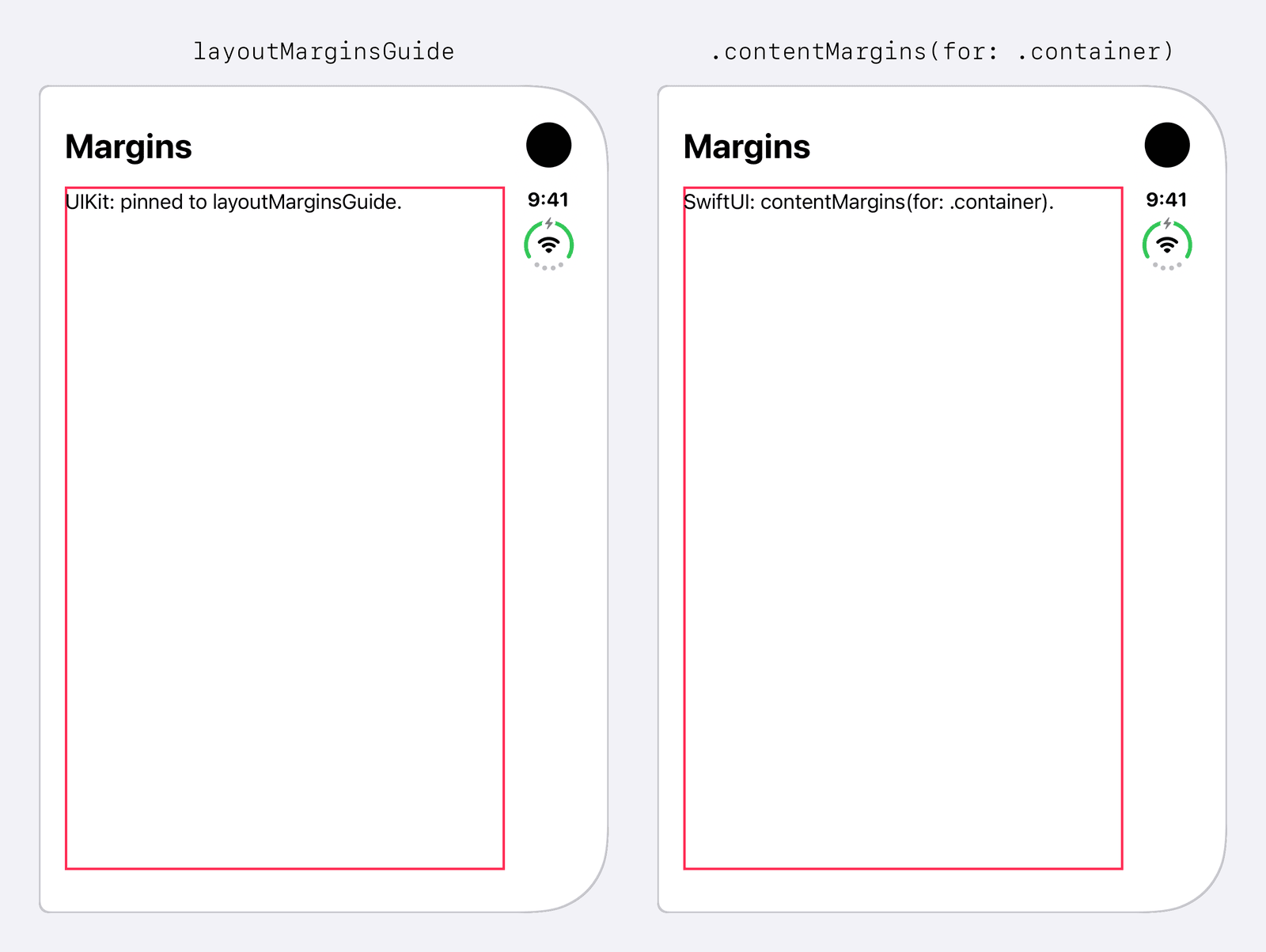
Here are the left and right values from both, on the same devices:
| Device | UIKit layoutMargins |
SwiftUI contentMargins |
|---|---|---|
| iPhone 18 Pro, portrait | 16 / 16 | 16 / 16 |
| iPhone 18 Pro, landscape | 78 / 78 | 16 / 16 |
| iPhone 18 Pro Max, portrait | 20 / 20 | 20 / 20 |
| iPhone 18 Pro Max, landscape | 78 / 78 | 16 / 16 |
| iPad Pro 13-inch, portrait | 20 / 20 | 20 / 20 |
| iPad Pro 13-inch, landscape | 20 / 20 | 20 / 20 |
| iPhone Duo (closed), portrait | 20 / 84 | 20 / 0 |
| iPhone Duo (closed), landscape | 84 / 20 | 0 / 20 |
The numbers differ only where there is a safe area on the side. UIKit counts it, and SwiftUI doesn't. Your content still lands in the same place, because a SwiftUI view already starts inside the safe area.
Backward compatibility
ContentMarginGuide, the view modifier, and the GeometryProxy method are all iOS 27.1 and later. The docs also list iPadOS, Mac Catalyst, macOS, visionOS, and watchOS 27.1.
If you support iOS 27.0, wrap it in your own modifier and fall back to padding:
struct ContainerMargins: ViewModifier {
    func body(content: Content) -> some View {
        if #available(iOS 27.1, *) {
            content.contentMargins(for: .container, edges: .horizontal)
        } else {
            content.padding(.horizontal)
        }
    }
}
The fallback is still a guess, though. It only has to be close on devices that run iOS 27.0.
.padding(.horizontal) with no number gives 16 points on every device I tried. That matches iPhone 18 Pro, but it is 4 points short on iPhone 18 Pro Max and iPad Pro, where the margin is 20.
The good news: iPhone Duo ships with iOS 27.1, so this fallback never runs on Duo.
You can easily support sarunw.com by checking out this sponsor.
AI Grammar: Correct grammar, spell check, check punctuation, and parphrase.
Summary
.contentMargins(for: .container)applies the system margins to a view, the same place UIKit'slayoutMarginsGuideputs it.- Use
proxy.contentMargins(for: .container, edges:)when you need the numbers, for example to feed scroll content margins. - Both need iOS 27.1. On iPhone Duo the two sides can differ, so stop hard-coding 16.
Read more article about SwiftUI, iOS, or see all available topic
Enjoy the read?
If you enjoy this article, you can subscribe to the weekly newsletter.
Every Friday, you'll get a quick recap of all articles and tips posted on this site. No strings attached. Unsubscribe anytime.
Feel free to follow me on Twitter and ask your questions related to this post. Thanks for reading and see you next time.
I also make short videos and visual guides on Patreon. Some things are easier to see than to read, like how an API looks and moves on a real screen. If you like to learn that way, come and watch. Sharing the article is also greatly appreciated.
Become a patron Tweet ShareHow to use layoutMarginsGuide in UIKit
layoutMarginsGuide gives your views the system margins, so content lines up with the navigation bar on every device. Learn how it works with the safe area, and how to change it.