Size classes inside ArrangementView
Table of Contents
After I posted my table of size classes in ArrangementView, Chad Etzel noticed something odd. The view at the top of each pane reported the window's size classes, but a view inside it reported different ones.
My table only read the top view, so I tested it again. Chad is right.
What I posted on iOS 27.1
This is the image from my tweet. I read the size classes in the view I passed straight to ArrangementView, on the iOS 27.1 iPhone Duo simulator.
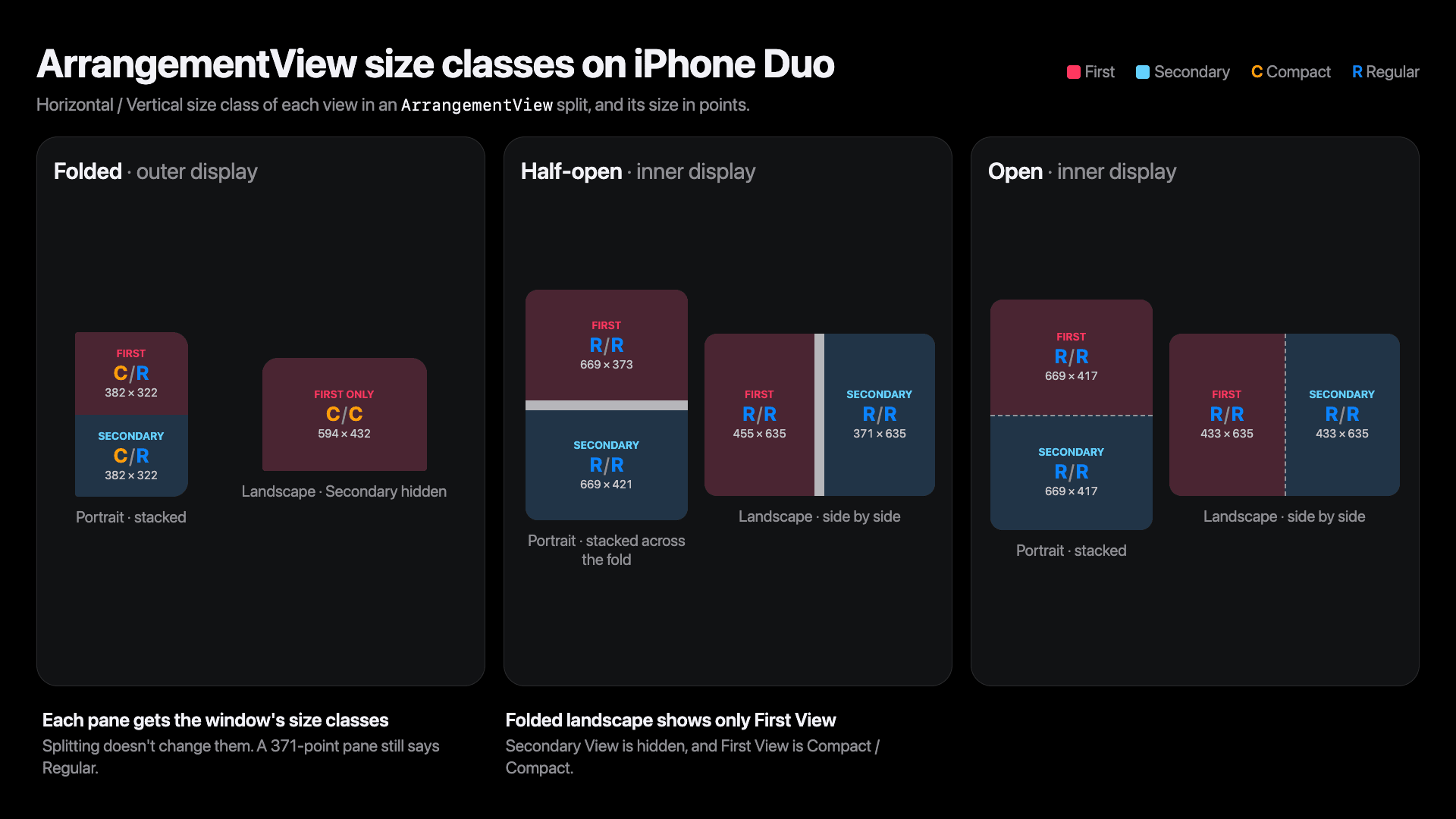
Here is the weird part. Every pane reports the window's size classes, no matter how small it is.
- Half-open and side by side, the Secondary view is only 371 points wide, but it still reports a Regular width. An iPhone 17 in portrait is 402 points wide, and it's Compact.
- Stacked, the panes are only 373 and 421 points tall, but they still report a Regular height.
A view that reads a regular width at 371 points would pick its iPad layout in a space narrower than an iPhone. That didn't look right.
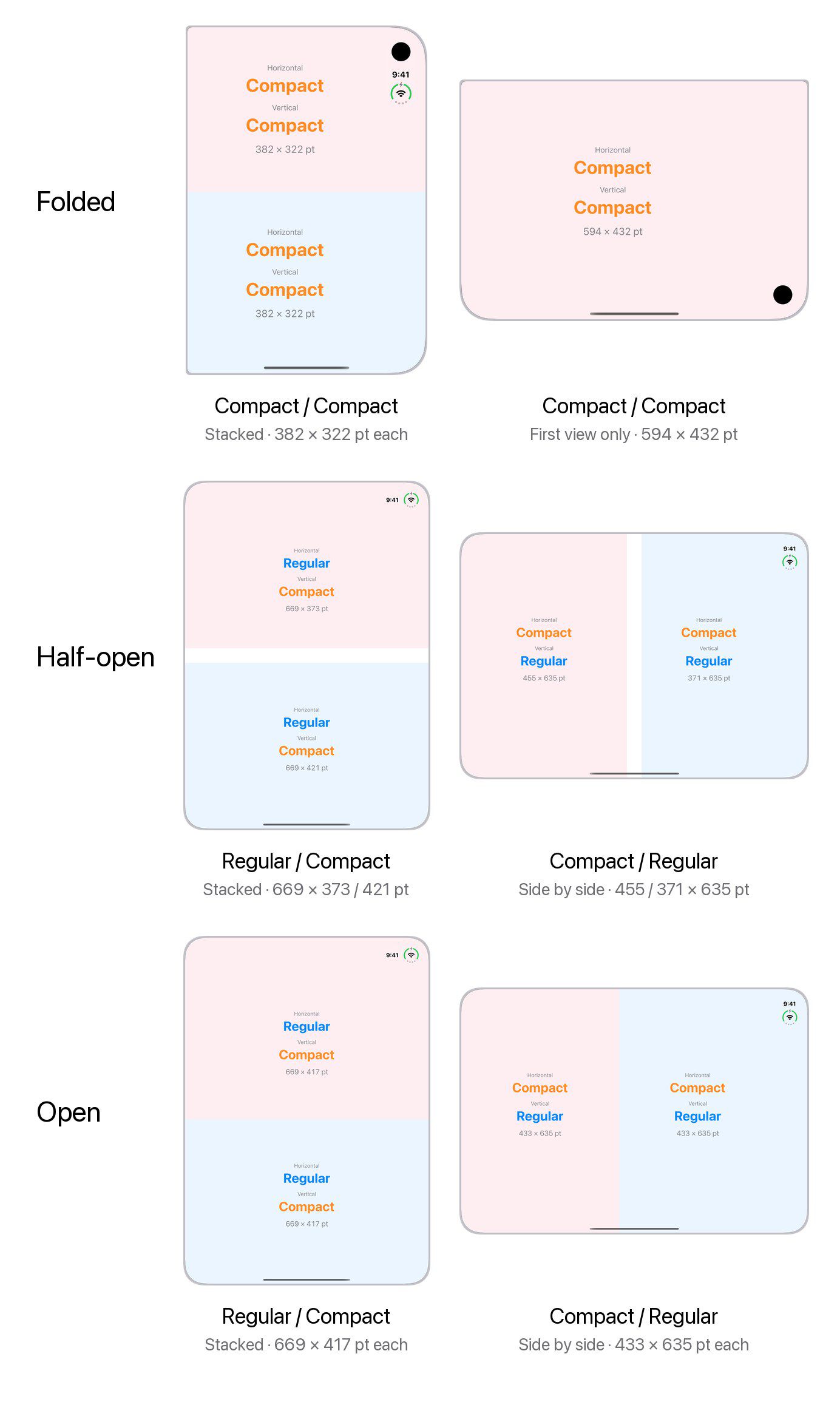
It turns out these values are only what the top view sees, the view I passed straight to ArrangementView. If you add a child view inside it, the child reads the size classes you'd expect: compact along the axis that is split.
Here is the same test, with the size classes read by a child view inside each pane:
You can easily support sarunw.com by checking out this sponsor.

Offline Transcription: Fast, privacy-focus way to transcribe audio, video, and podcast files. No data leaves your Mac.
The top view on iOS 27.1
Here is the part that confused us both. On iOS 27.1, the view you pass straight to ArrangementView reads the window's size classes. Every view below it reads the pane's.
ArrangementView {
    PaneView() // iOS 27.1: the window's size classes
} secondary: {
    PaneView()
}

struct PaneView: View {
    @Environment(\.horizontalSizeClass) private var horizontalSizeClass // Regular

    var body: some View {
        ChildView() // reads Compact
    }
}
On iOS 27.2, the same PaneView reads the pane's size classes, like everything inside it.
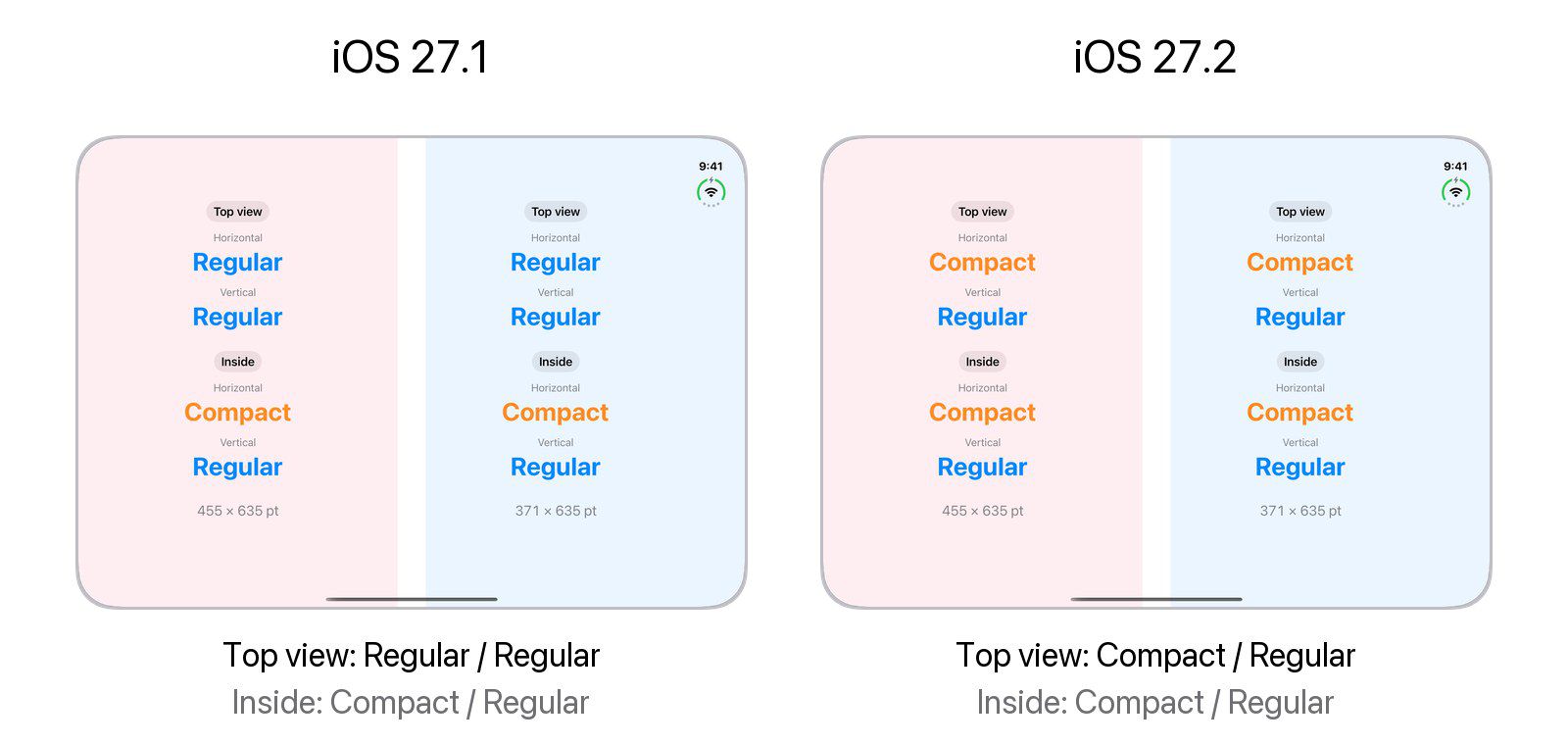
To check that it's about the top view, I wrapped PaneView in one extra VStack on iOS 27.1. Then PaneView was no longer the top view, and it read Compact / Regular like the rest.
That's why my earlier table said the panes keep the window's size classes. I was reading the one view that does, on iOS 27.1.
iOS 27.2
On iOS 27.2, the top view reads the same size classes as the views inside it. Here is the corrected table (Horizontal / Vertical):
| Pose | Layout | Size (points) | Each pane |
|---|---|---|---|
| Folded, portrait | Stacked | 382 × 322 each | Compact / Compact |
| Folded, landscape | First view only | 594 × 432 | Compact / Compact |
| Half-open, portrait | Stacked | 669 × 373, 669 × 421 | Regular / Compact |
| Half-open, landscape | Side by side | 455 × 635, 371 × 635 | Compact / Regular |
| Open, portrait | Stacked | 669 × 417 each | Regular / Compact |
| Open, landscape | Side by side | 433 × 635 each | Compact / Regular |
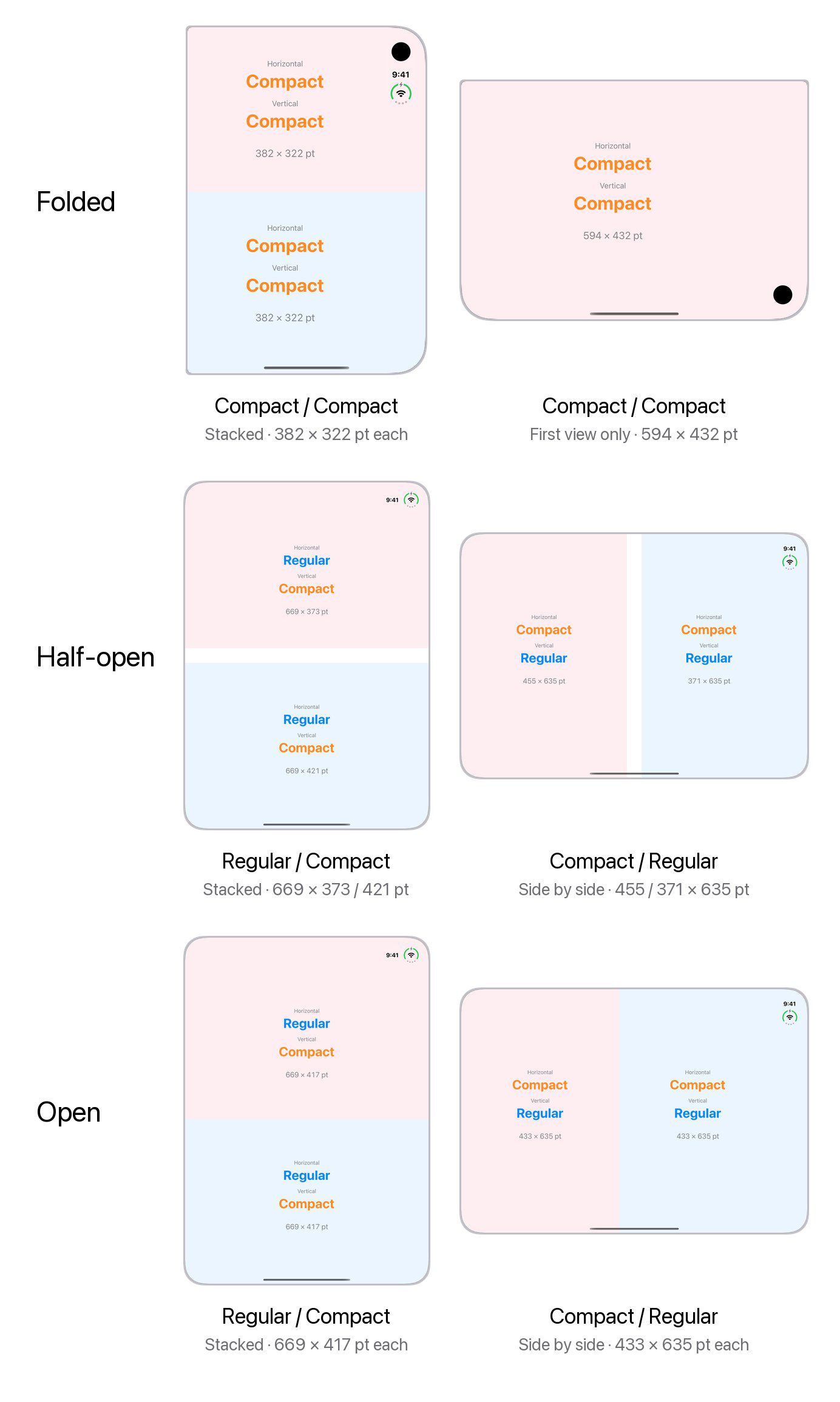
UIKit gets the same values. A UIView, a UIViewController, and a UIHostingController inside a pane all matched the SwiftUI views.
iPad
ArrangementView works on iPad too. Here it is full screen on iPad Pro 13-inch (M5), iOS 27.2:
| Orientation | Layout | Size (points) | Each pane |
|---|---|---|---|
| Portrait | Stacked | 1032 × 662 each | Regular / Compact |
| Landscape | Side by side | 688 × 980 each | Compact / Regular |
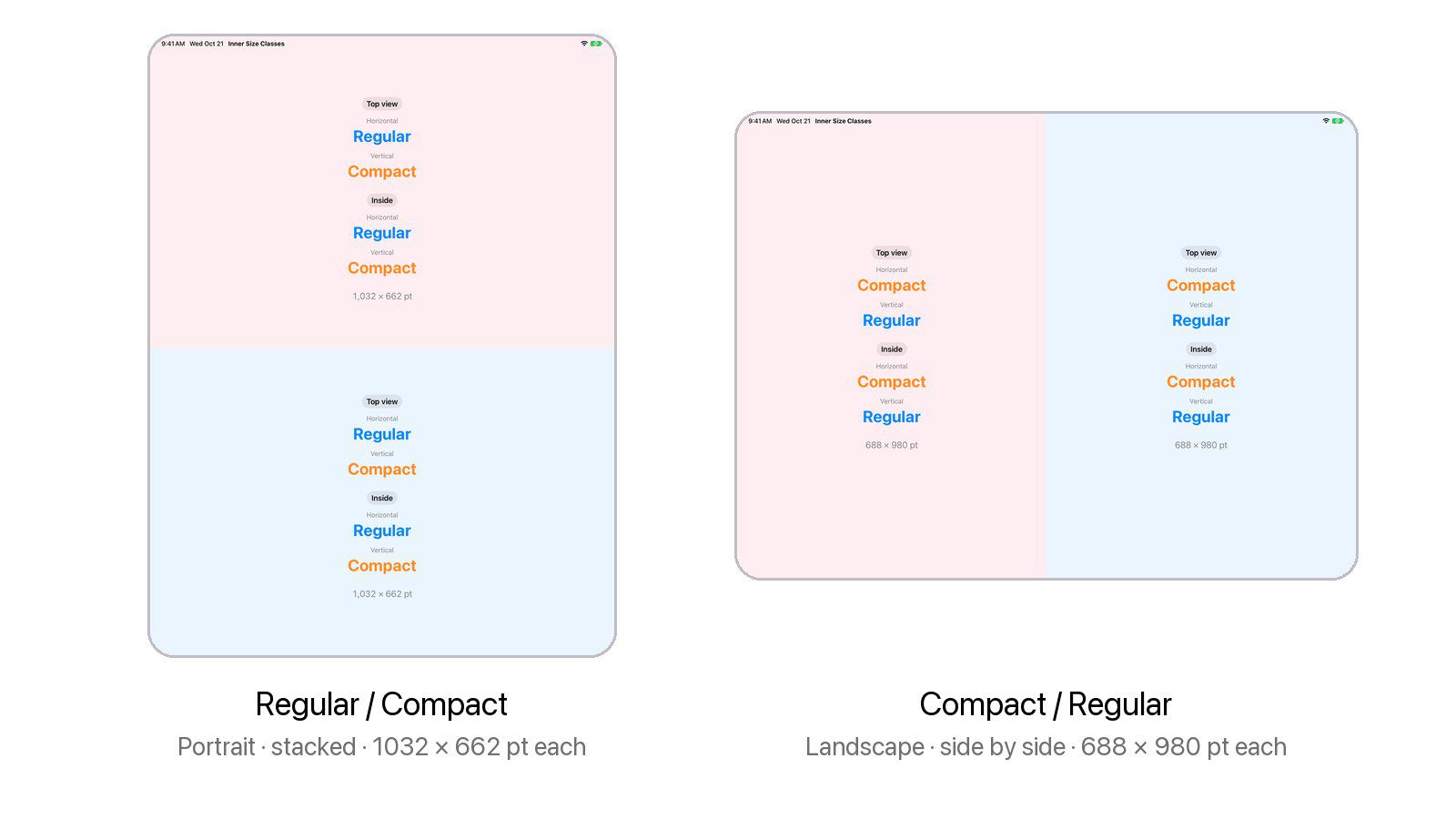
These are the same size classes as an unfolded iPhone Duo. Half-open or open, iPhone Duo also gets Regular / Compact when stacked and Compact / Regular side by side. So when it's unfolded, your panes get the same size classes as they would on iPad, even on the biggest iPad.
You can easily support sarunw.com by checking out this sponsor.
Offline Transcription: Fast, privacy-focus way to transcribe audio, video, and podcast files. No data leaves your Mac.
Summary
- Inside an ArrangementView, the axis that is split goes compact. Side by side gives a compact width. Stacked gives a compact height.
- iOS 27.1 seems to have a bug: the view you pass straight to
ArrangementViewreads the window's size classes, not the pane's. - If you need the pane's size classes on iOS 27.1, read them in a view nested inside a container, not in the top view. One extra
VStackis enough:
ArrangementView {
    VStack {
        PaneView() // Now reads the pane's size classes on iOS 27.1 too.
    }
} secondary: {
    VStack {
        PaneView()
    }
}- iOS 27.2 doesn't have this problem. The top view and the views inside it agree.
- If you need the window's size classes, read them outside the
ArrangementViewand pass them in.
struct ContentView: View {
    @Environment(\.horizontalSizeClass) private var windowSizeClass

    var body: some View {
        ArrangementView {
            PaneView(windowSizeClass: windowSizeClass)
        } secondary: {
            PaneView(windowSizeClass: windowSizeClass)
        }
    }
}
Thanks to Chad Etzel for spotting this.
Read more article about iOS, SwiftUI, UIKit, or see all available topic
Enjoy the read?
If you enjoy this article, you can subscribe to the weekly newsletter.
Every Friday, you'll get a quick recap of all articles and tips posted on this site. No strings attached. Unsubscribe anytime.
Feel free to follow me on Twitter and ask your questions related to this post. Thanks for reading and see you next time.
I also make short videos and visual guides on Patreon. Some things are easier to see than to read, like how an API looks and moves on a real screen. If you like to learn that way, come and watch. Sharing the article is also greatly appreciated.
Become a patron Tweet ShareHow to use layoutMarginsGuide in SwiftUI
iOS 27.1 gives SwiftUI its own version of UIKit's layoutMarginsGuide, contentMargins(for: .container). Here is how to apply the system margins to a view, how to read them from a GeometryProxy, and what to do on older iOS.